
Makeup lessons: three ways to run them, and how to set each one up
Makeups can be one of the messiest parts of running a studio. A parent texts on Sunday night to say their child is sick. Someone forgets a lesson entirely. You cancel a week because you're away. Each one leaves a small question hanging: do you owe that lesson back, and if you do, when on earth are you going to fit it in?
So it can be messy, so much so that some teachers just don't offer them. And that's a valid choice. But it's equally valid to recognise that families' schedules can be complex, people can get sick, and you want to be able to provide your families with some flexibility. The question is: how do you do this whilst keeping your sanity, not feeling like you are losing income or working more than you are being paid for, or feeling overwhelmed by a list of 'owed' makeups?
Maybe you are the kind of teacher who carries a running tally of promised makeups in your head. Maybe some of them get delivered, maybe not. Parents might get frustrated, feeling they've been short-changed, and you're left with a constant administrative overhead, wondering if you're up to date and square.
It doesn't have to be this way. For starters, there is the decision about whether you will even offer makeup lessons to begin with. And if you decide you do want to, then there are ways to make this much easier and less painful than trying to keep track of who you owe in your head, or in a spreadsheet.
Before anything else, decide what kind of studio you want to run. There are three sensible positions, and Octavia is built to support all of them.
The three approaches
Offer no makeups at all. You might choose this because you value a clean calendar and a clear boundary. Your teaching time is booked and paid for like any other professional's, and a missed lesson is simply a missed lesson. The appeal is simplicity. There is no tally to keep, no juggling, and no open-ended obligations following you around for weeks. Families know exactly where they stand, and so do you. The trade-off is that some parents will feel short-changed when their child is genuinely sick, so this only works if you state the policy plainly up front and hold the line consistently. Done well, it is the least stressful studio to run.
Offer no makeups, but still give feedback. This is the middle path, and it suits teachers who want the boundary but can't bear the thought of a child missing a week and getting nothing. You don't reschedule and you don't give up a teaching slot, but the student still gets your attention on the work they missed. They send you a recording of the piece, and you respond to it in your own time. The pros are considerable: your calendar stays protected, the child keeps progressing, and parents feel looked after rather than penalised. It works asynchronously, so it never has to compete with your live teaching hours. The cost is a little of your time to give the feedback, and it isn't a like-for-like replacement lesson, but for many studios that's a fair balance.
Offer makeups. Plenty of teachers choose this because they know families have busy, complicated lives, and it simply sits better with them to run a studio that supports people rather than penalises them. The upside is goodwill. Families feel the flexibility, they stay longer, and you rarely have the awkward conversations that a strict policy invites. The catch is not the lessons themselves, it's the admin: working out who's owed one, finding a slot, offering it, waiting for a reply, and rebooking. That back-and-forth is the part that wears teachers down, and it's the reason some give up on makeups altogether. The good news is that this is the one downside you can almost entirely design away, which is what the rest of this article is about.
None of these is the correct answer. They're three different studios. Pick the one that matches how you actually want to work, then set it up properly once so you stop making the decision lesson by lesson.
Here's how to implement each in Octavia.
Option one: no makeups
The whole point of this option is that a missed lesson is a missed lesson. The setup work is making sure the software agrees with you, and making sure families have signed up to it in writing.
Set your attendance settings
In Octavia, whether a missed lesson creates a makeup is not hardcoded. It's controlled entirely by your attendance settings. Each attendance status you use has a setting called creates a makeup credit, and if that's switched on, marking a student with that status hands them an entitlement to a replacement lesson without you doing anything else.
For a no-makeup studio, go to Settings → Attendance Settings and check every status you use for absences. For each one, make sure creates a makeup credit is turned off. An absent student should be recorded as absent, with no credit generated. You can still decide separately whether each status is billable. That's a different setting, but the makeup toggle is the one that matters here.
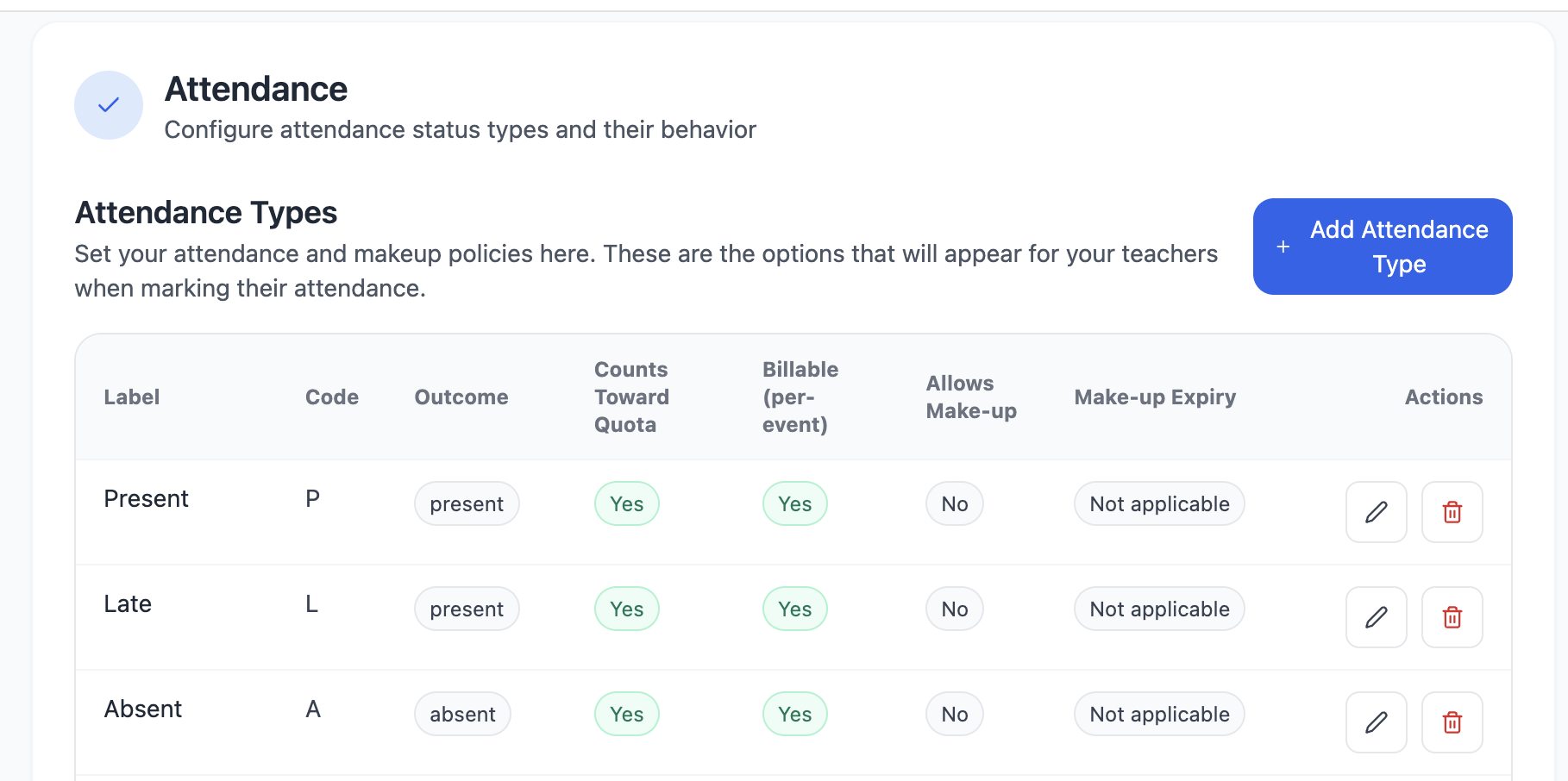
The Attendance Settings come with a suitable set of statuses already, including an "Absent" status that does not allow makeups. You may wish to remove the other existing statuses that do allow makeups. Once your statuses are right, click the confirmation button on the attendance settings page to sign off on the review. If your policy ever changes, you can come back and update it.
What you do: review each absence status, turn the makeup credit setting off, confirm the review.
What the family does: nothing here. This step is invisible to them. It simply means that when you mark their child absent, no makeup is ever created behind the scenes.
Publish the policy and collect consent
A no-makeup policy only works if families know about it and agreed to it before the first missed lesson, not after. If you're reviewing your policies more broadly, The 10 policies every good music teaching studio should have covers the other areas worth deciding at the same time. The News feature is the cleanest way to put your makeup policy on the record.
Go to the News section and click Create a News Item. Give it a clear title, something like "Studio attendance and makeup policy", and write the policy in the body in plain language, or upload the policy as a Word document or PDF. Then add a Consent response block. Consent is deliberately more formal than a simple acknowledgement: the family has to type their full name before the consent buttons activate, and both the name and their decision are recorded. That gives you a proper record rather than a passing click.
Add your students as recipients, publish the item, then send it out by email (or SMS if you've turned that on). When you publish, Octavia takes a permanent snapshot of exactly who received that version, so months later you can still see precisely who was asked to consent and what they said.
What you do: write the policy as a News item, add a Consent block, target your families, publish and send.
What the family does: they see the item in their Family Hub feed as something that needs a response. They open it, read the policy, type their name, and select "I consent" or "I do not consent". You can see every response in the item's Students panel, so you know at a glance who has signed and who is still outstanding.
Option two: no makeups, but still give feedback
This option is for teachers who don't want to reschedule but also can't quite bear the idea of a child missing a week and getting nothing at all. You keep a boundary that respects your time, but the student still gets effective feedback on their work.
Your attendance setup is the same as option one: no makeup credits. What changes is what you offer instead of a slot.
Use the Interactive Video tool
The Interactive Video tool lives inside a lesson note. It has two phases: the student sends you a recording, and you leave feedback on it.
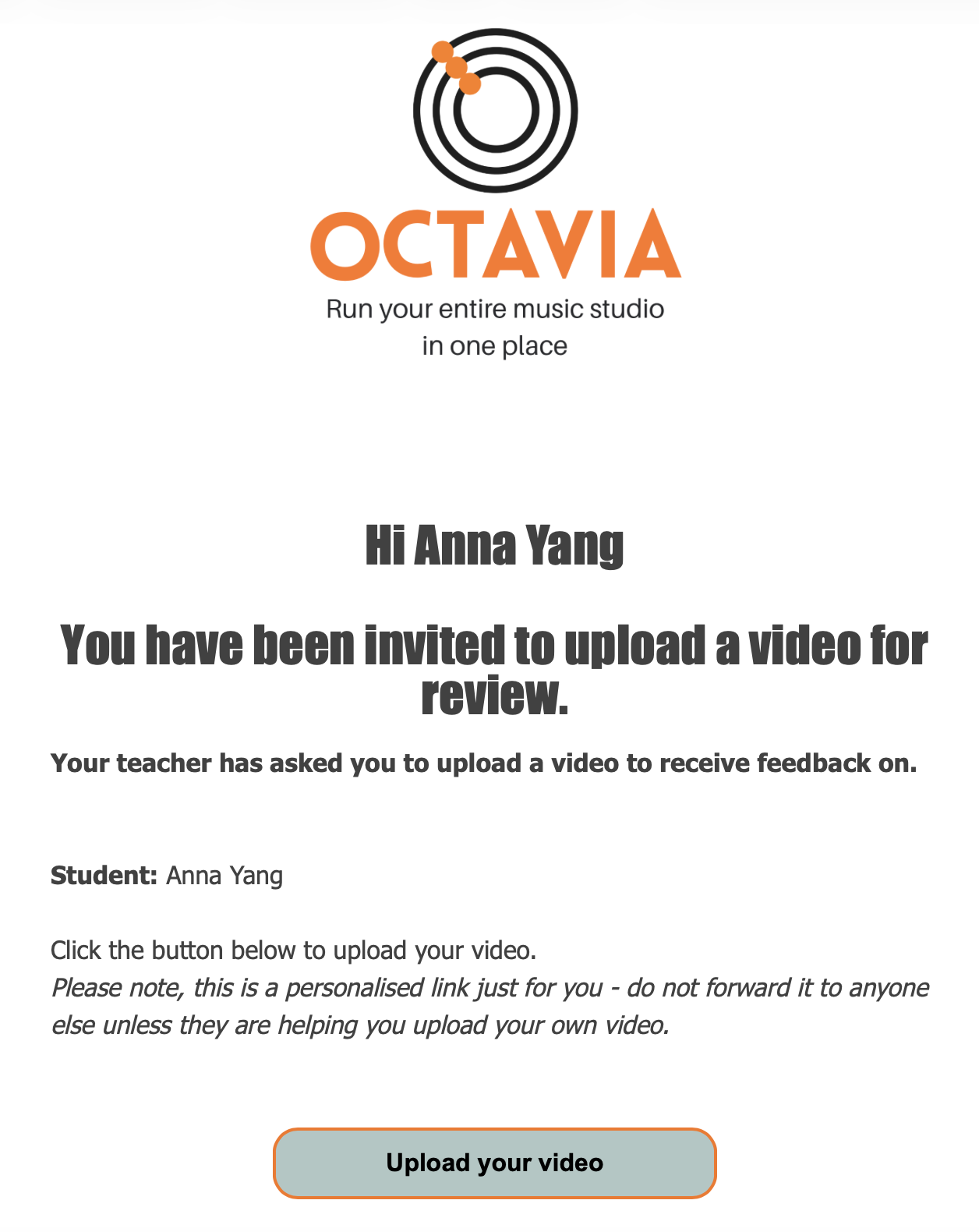
Open or create a lesson note for the student and add the Interactive Video tool. At first it shows a placeholder because no video has been uploaded yet. Click Invite student to upload video to open the invite modal, choose whether it goes to the parent, the student, or both, review the recipients, and send. The family gets an email with a secure upload link. They don't need to log in to anything, they just open the page and record or upload a video of the piece they were working on.
Once their video comes in, you watch it and add feedback directly on the timeline. Click Add Comment at the moment you want to mark, and choose the comment type: typed text, a short voice note, or a short video note where you can demonstrate. Each comment anchors to the exact second in the recording, and shows as a colour-coded marker on the progress bar.
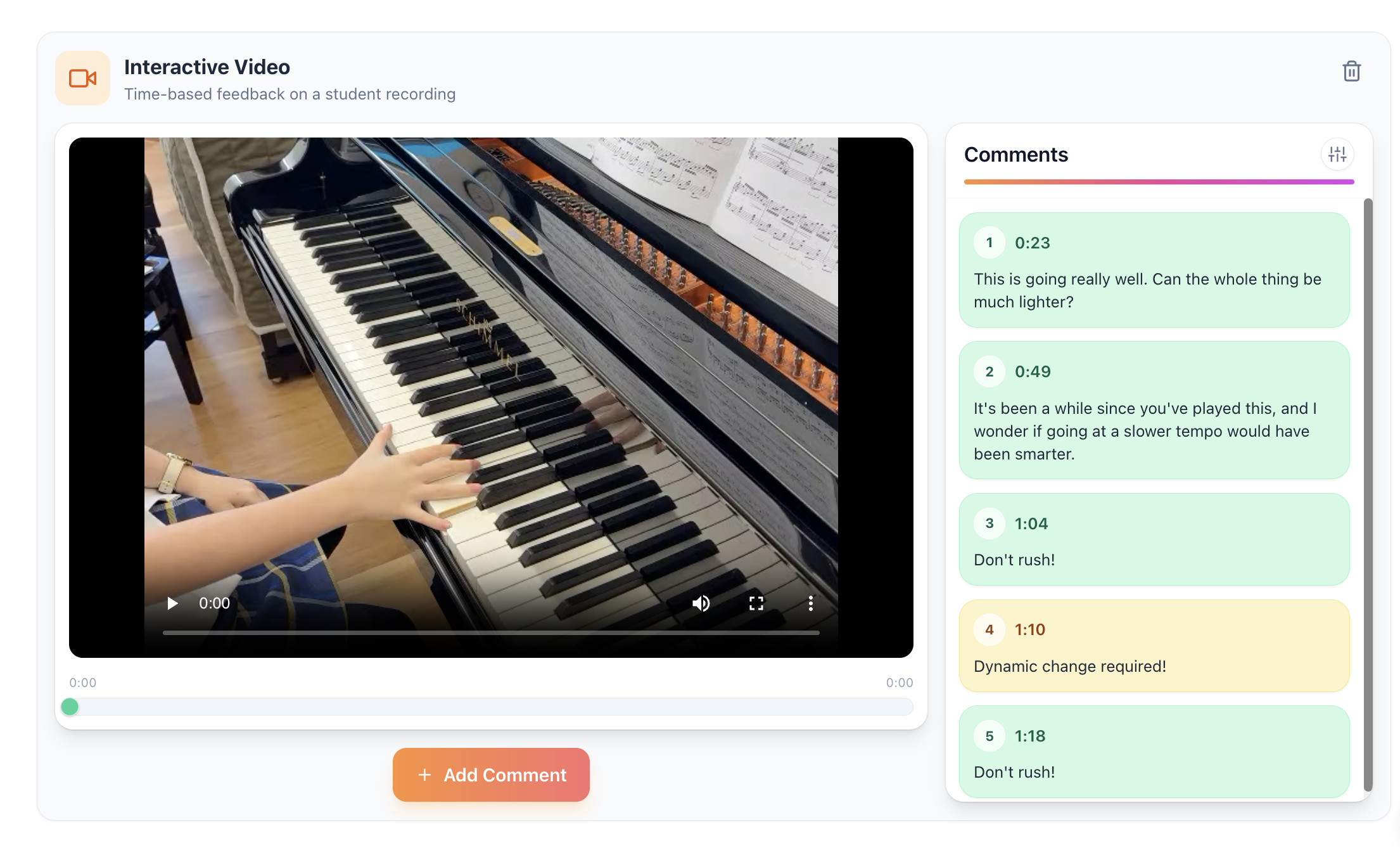
What you do: add the tool to a lesson note, invite the student to upload, then watch their recording and leave time-stamped text, voice, or video comments.
What the family does: they receive the upload invitation, record or upload the piece with no login required, and later watch the annotated video back in the Family Hub. They can see your markers and play your voice and video notes, but they can't comment themselves. It becomes a small, contained exchange rather than a rescheduled lesson.
This gives a missed week a proper close. The student did the work, you responded to it, and you didn't have to find another teaching spot for that child in a different week that was just as busy as this one.
Tip: if you are going to choose this option, it is a good idea to communicate it clearly in your policies as well. You can use the News items to do this, as described under option one. You may choose to give families a deadline by which they have to upload their video. Some teachers choose to make this deadline the time of the scheduled lesson, so that you can use the actual lesson time to give feedback on the video.
Option three: you offer makeups, without the admin
If you offer makeups, families really appreciate this. Nobody likes to pay for something they can't actually use. The problem is the amount of extra work it creates for you, particularly in terms of admin and scheduling — offering a time, waiting, re-offering, and rebooking. Octavia lets you keep offering makeups while handing most of that work back to the family through online makeup bookings.
Set attendance settings to create credits
This is the mirror image of option one. Go to Settings → Attendance Settings and, for the statuses where your policy is that the student is owed a replacement, turn creates a makeup credit on. Most studios switch it on for something like "absent with notice" and "teacher cancelled", and leave it off for a no-notice absence. Those are your choices (and incidentally, it is how the default attendance settings are set up in Octavia when you first create an account).
From then on, whenever you mark one of those statuses, Octavia creates the makeup credit automatically.
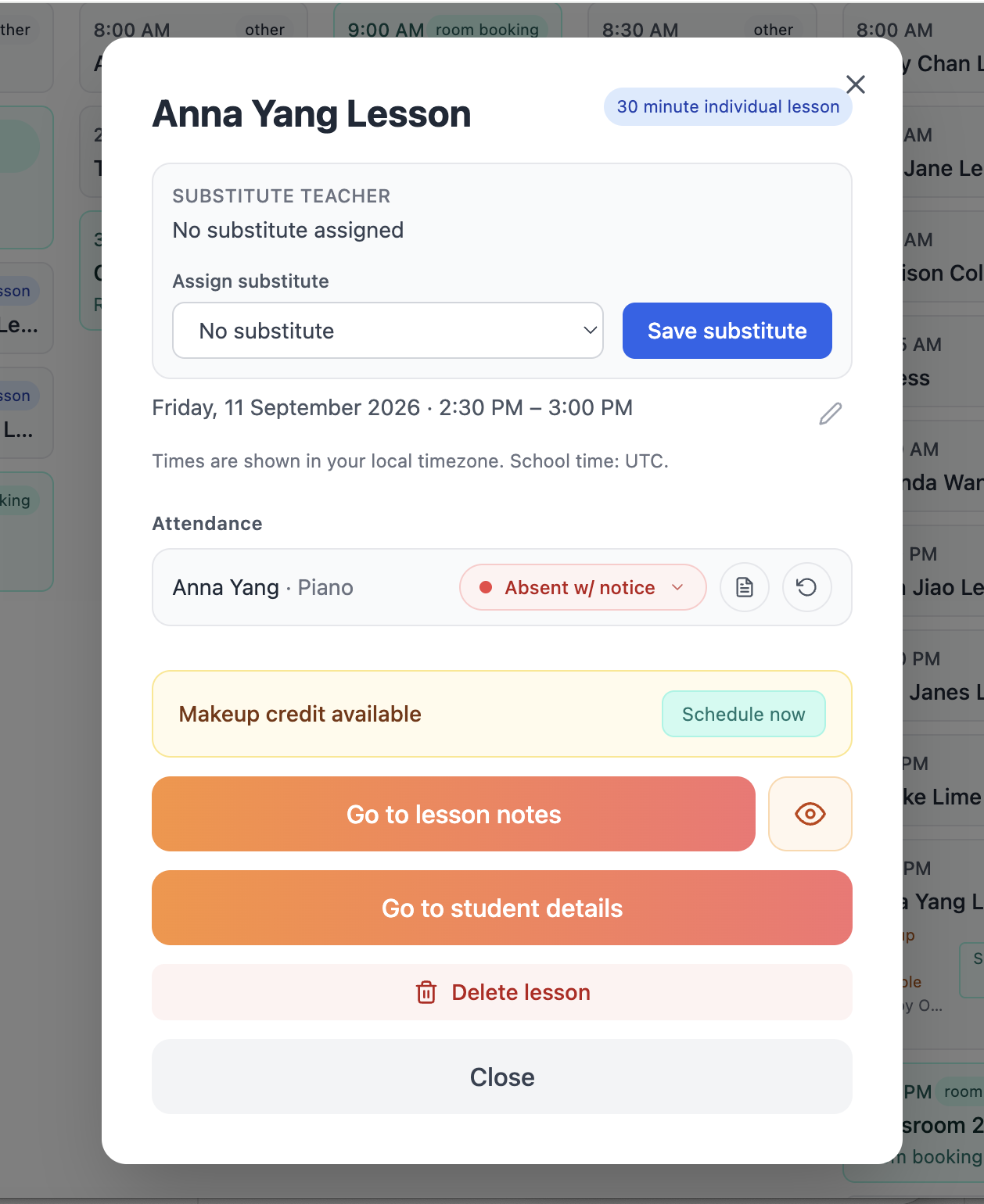
A credit is just an entitlement record: it says this student is owed a lesson. You will see the credit show up immediately on that lesson record, as well as on the student's detail page and the My Lessons list.
What you do: turn the makeup credit setting on for the right statuses, then simply mark attendance as normal. The credits look after themselves.
Turn on online makeup bookings
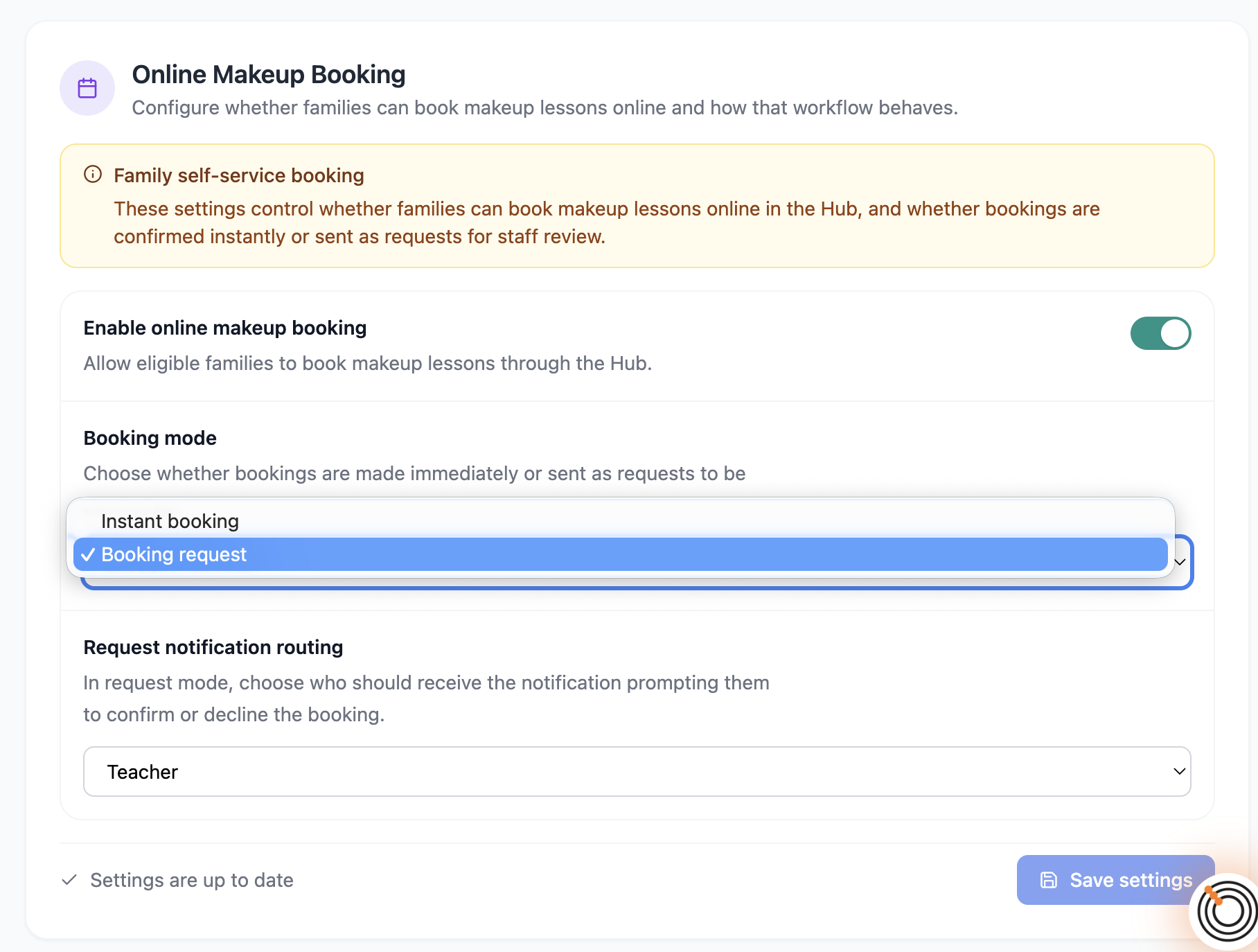
Now hand the scheduling to families. Open School Settings → Hub Settings and switch on Enable online makeup booking. Then choose your booking mode:
• Instant booking means the family picks one of your open slots and it's booked on the spot, no confirmation needed. Least admin, but you're committing to whatever slots you've opened.
• Booking request means the family asks for a slot and you confirm it first. A little more control for you, one extra step for you.
Then decide who gets notified about requests, the teacher, admin, or both, and save.
Set expiry rules and open slots
Two more pieces. First, set how long a makeup stays valid, so credits don't hang around forever. In Lesson Settings, click the edit pencil next to the attendance status that allows a makeup, set the expiry days, and choose whether the makeup must simply be booked by the expiry date or must actually take place by then.
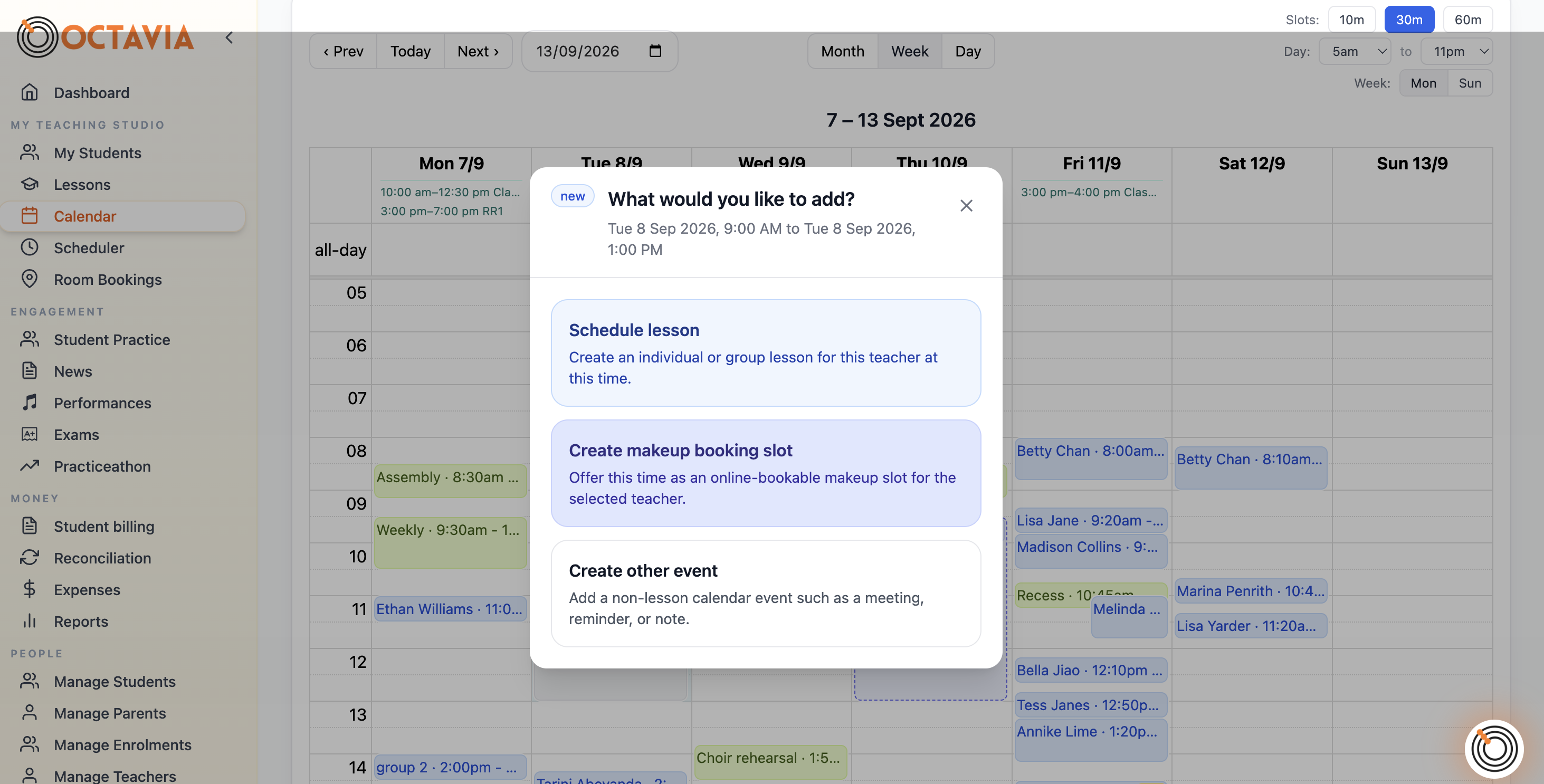
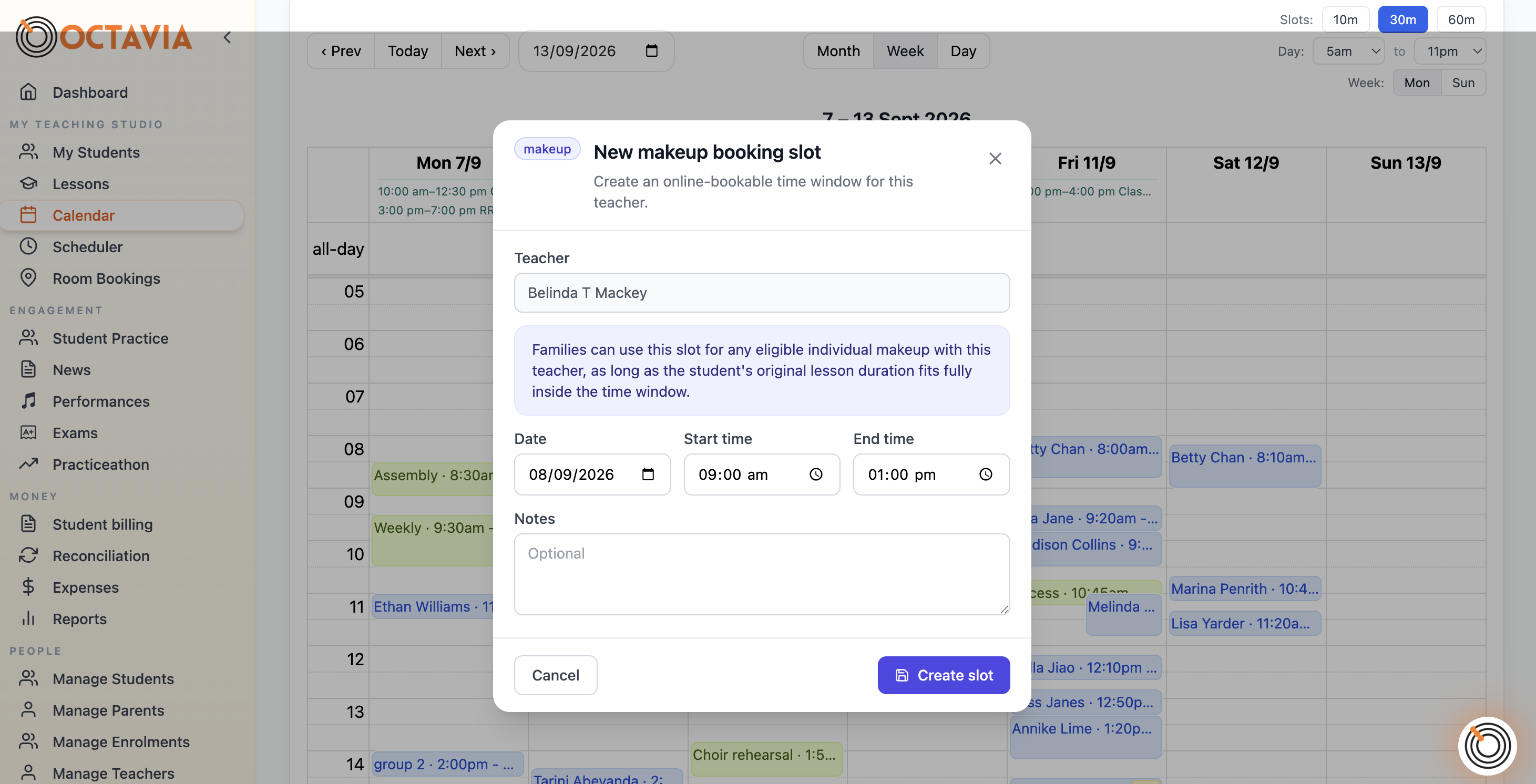
Second, open the times you're willing to offer. Go to your Calendar, click and drag across a time range, and choose Create makeup booking slot. That window is now bookable by any family with an eligible makeup. Nothing appears to families until you open these windows, so you stay in control of when makeups can happen.
To keep track, the Makeup Scheduling card shows every makeup still waiting to be scheduled and any pending booking requests, ready for you to confirm or act on. If you run a studio with more than one teacher, an admin can handle these on a teacher's behalf, so a request doesn't sit waiting for one busy person.
What you do: enable online booking, pick instant or request mode, set expiry rules, and open booking slots on your calendar. After that you're confirming requests — or nothing at all, if you chose instant.
What the family does: when their child is owed a makeup, they see it in the Family Hub, open the available slots you've opened, and book one themselves. With instant booking they're done immediately; with request mode they wait for your confirmation. Either way, the job of finding a time has moved off your desk and onto theirs. If they have subscribed to their Octavia calendar, the booked makeup will also flow through to the calendar app they already use.
The best thing about this approach is that it:
1. Shifts the responsibility of booking makeups onto your families.
2. You still get to set when you are willing to offer makeups.
3. You don't have makeups hanging around being 'owed' indefinitely. You can set a defined window in which they must be booked or taken.
Choosing
Don't just fall into the habit of a loose or random makeup policy. Decide whether you're a no-makeup studio, a feedback-instead studio, or a makeups studio, spend twenty minutes setting Octavia up to match, and tell your families where you stand. After that you can rest easy with your decision and move forward supported by Octavia.