
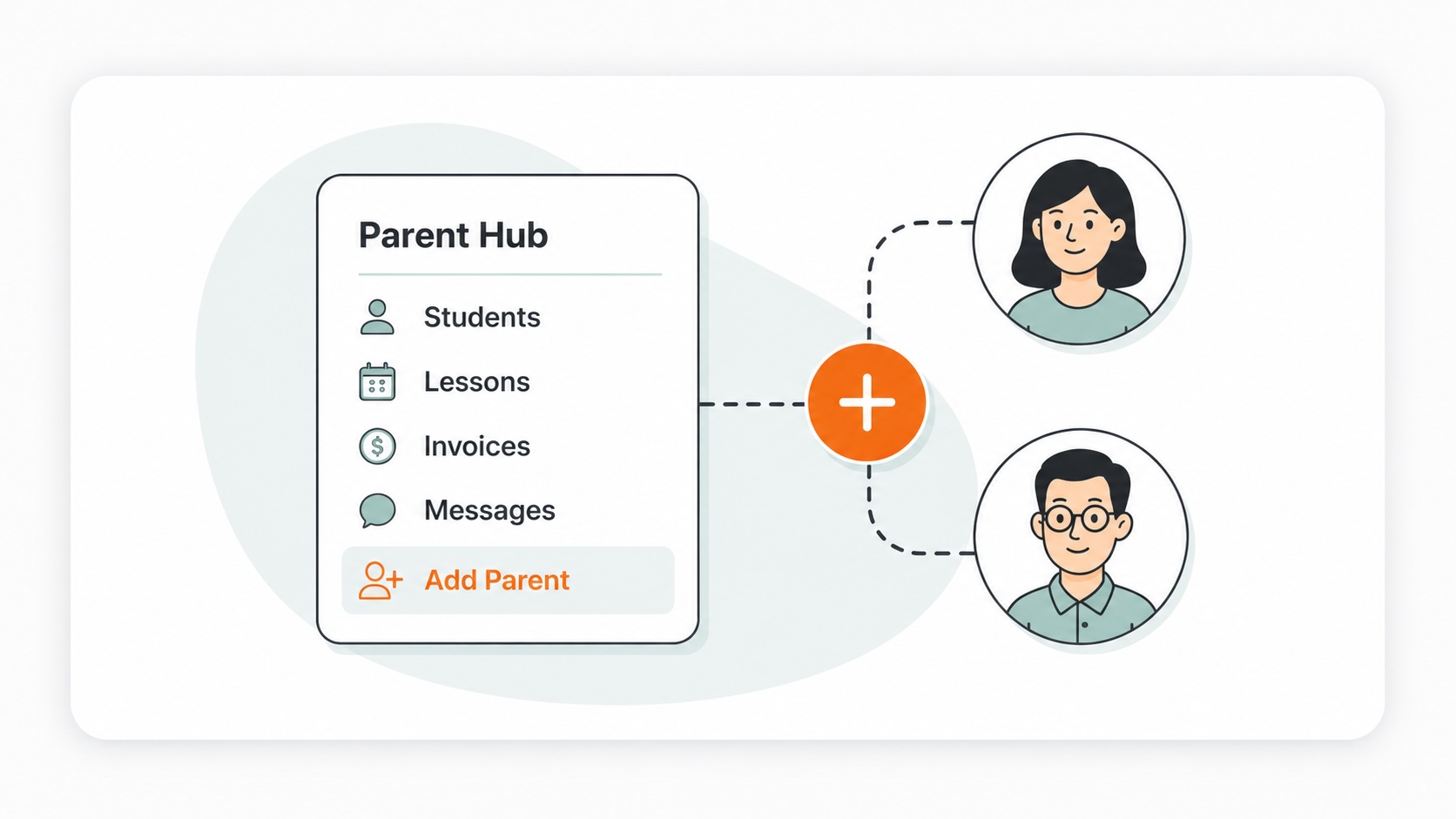
How to add a parent to the Parent Hub

How to add a parent to the Parent Hub

parentsparent hubstudents

Step 1 — Click on "My Students" in the sidebar
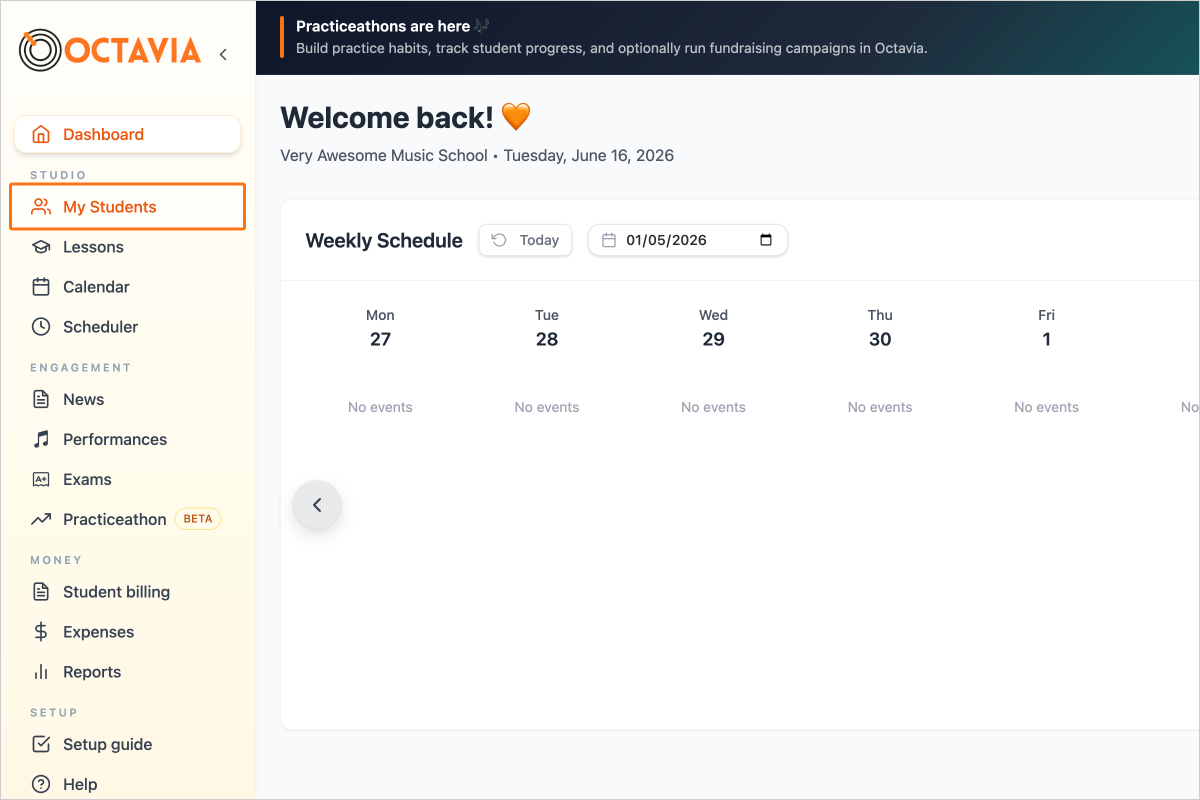
Step 1 - Click on "My Students" in the sidebar

Step 2 — Click on the student's name
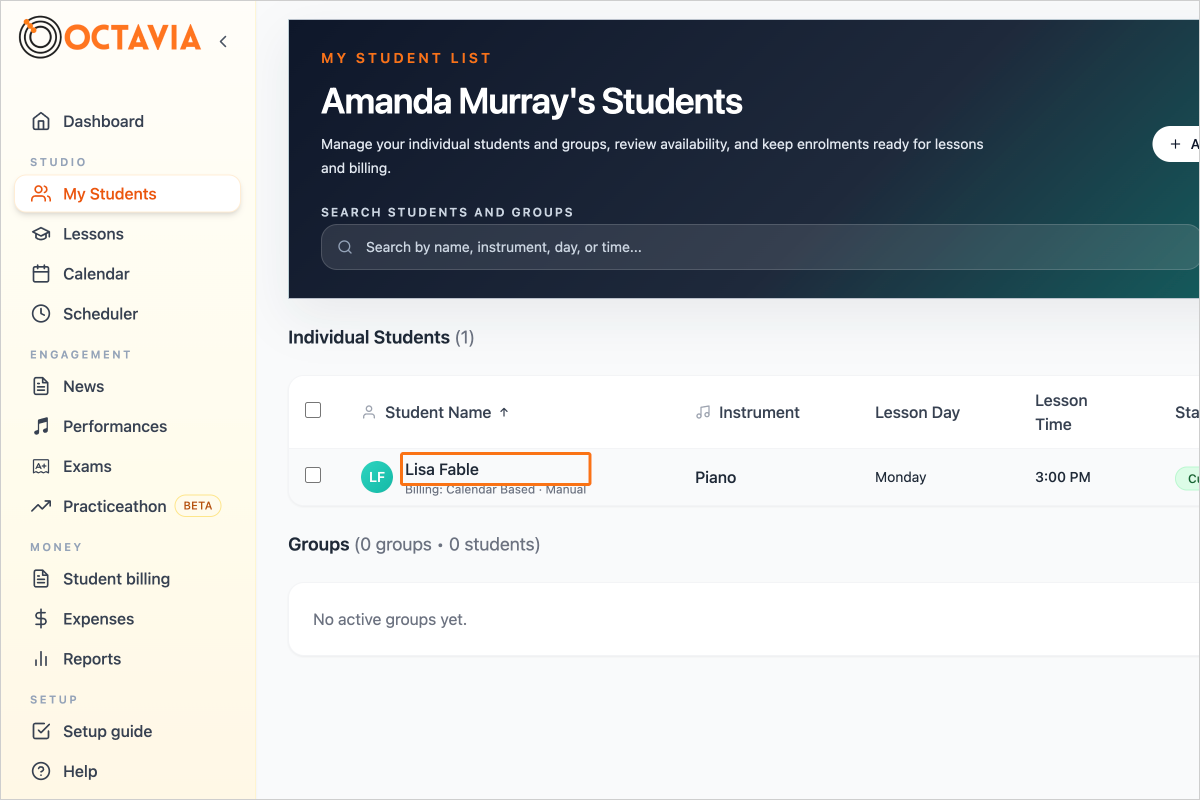
Step 2 - Click on the student's name

Step 3 — From the Student Details tab, click on the button "Add Parent"
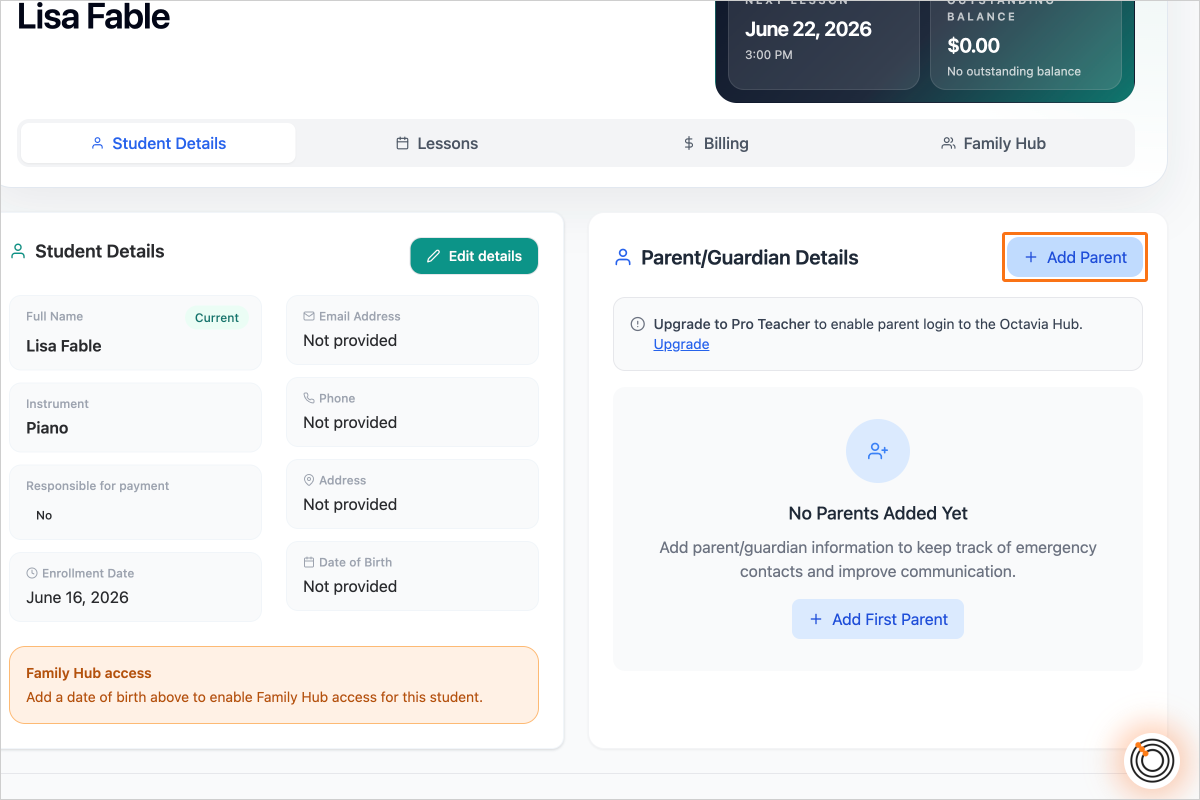
Step 3 - From the Student Details tab, click on the button "Add Parent"

Step 4 — Click on the button "Create New Parent"
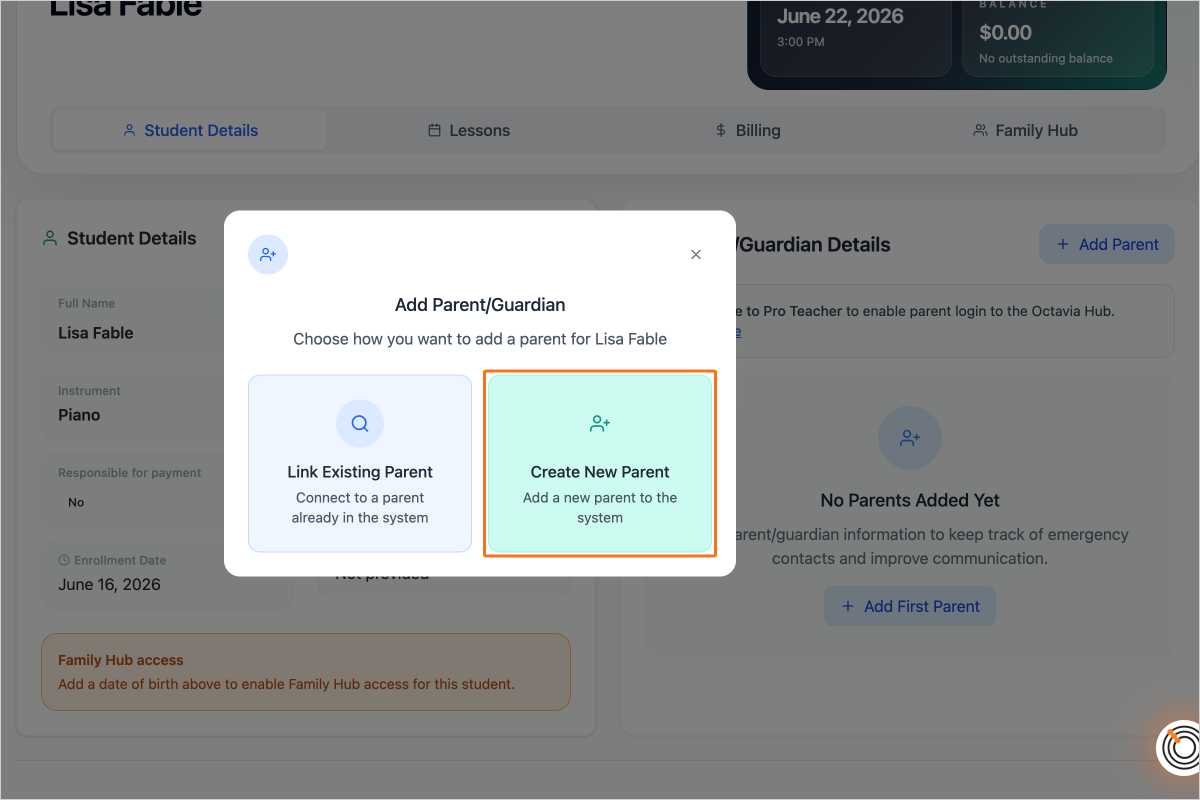
Step 4 - Click on the button "Create New Parent"

Step 5 — Enter the parent's details
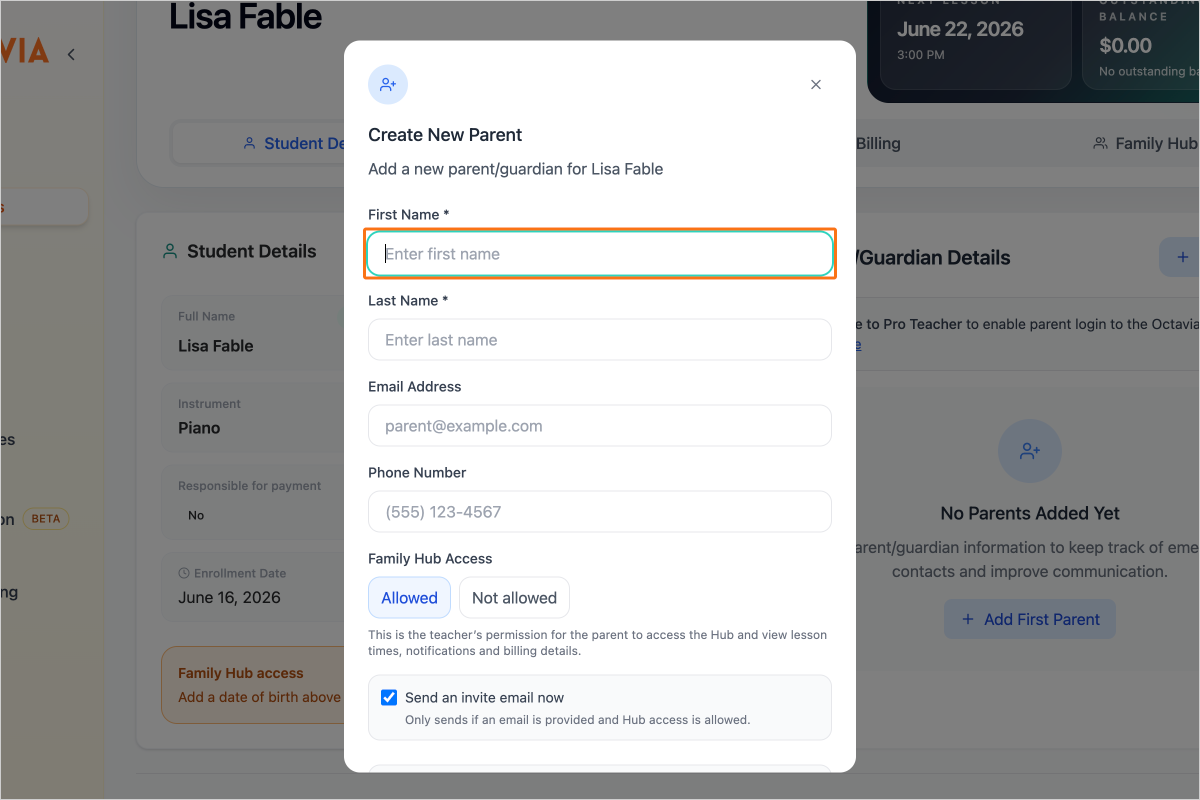
Step 5 - Enter the parent's details

Step 6 — Hub Access will be set to "Allowed" by default
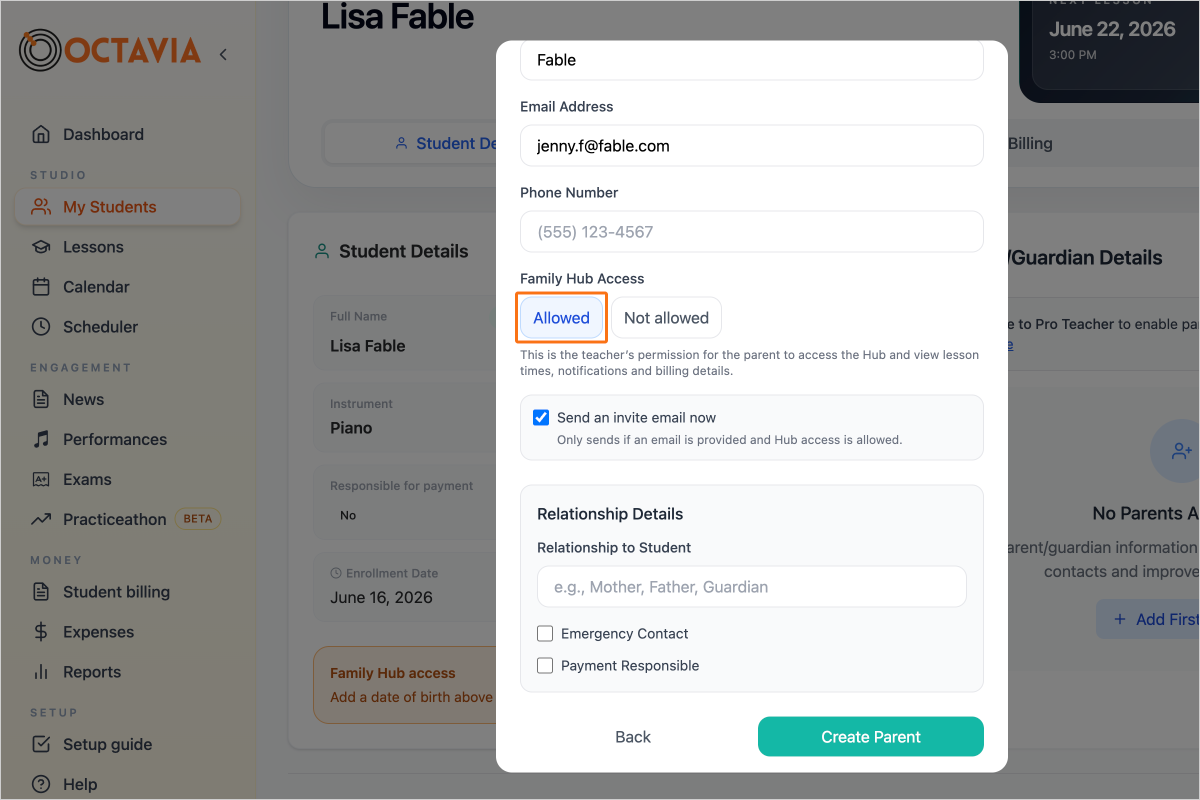
Step 6 - Hub Access will be set to "Allowed" by default

Step 7 — Enter their relationship to the student
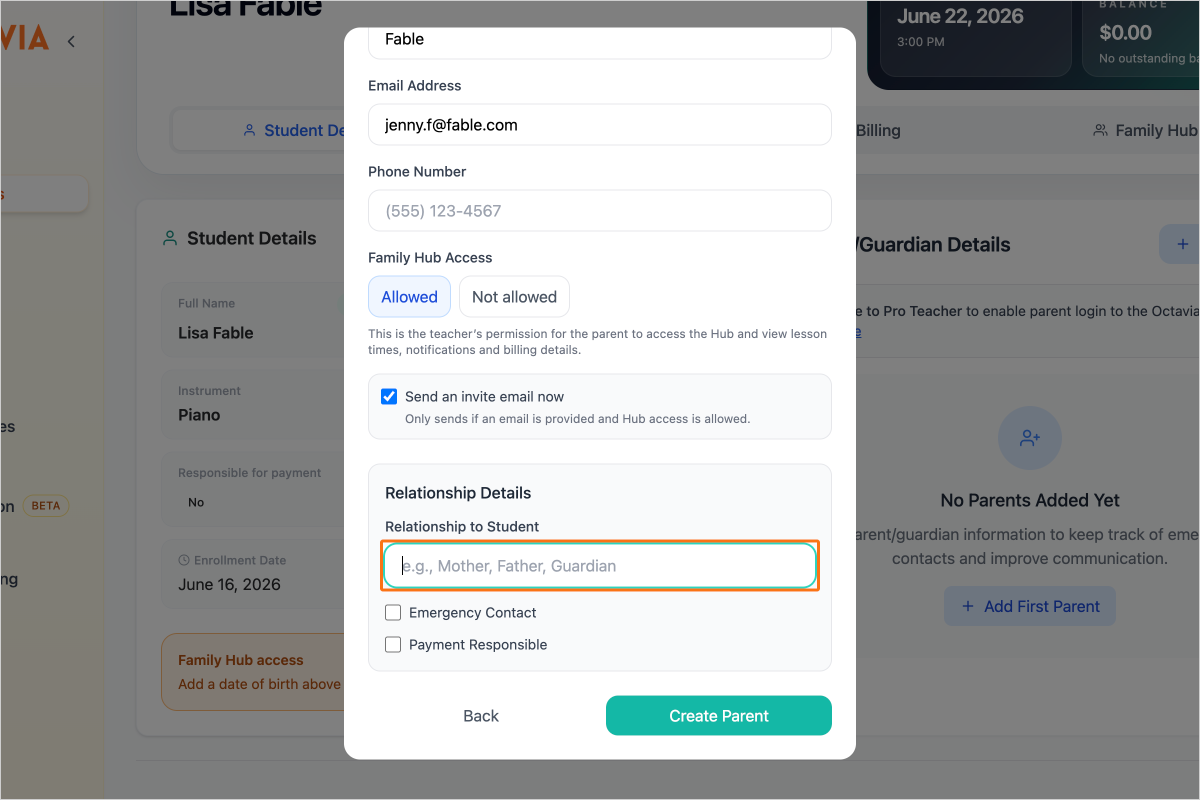
Step 7 - Enter their relationship to the student

Step 8 — Select "Payment Responsible" if they will be responsible for paying for the student's lessons
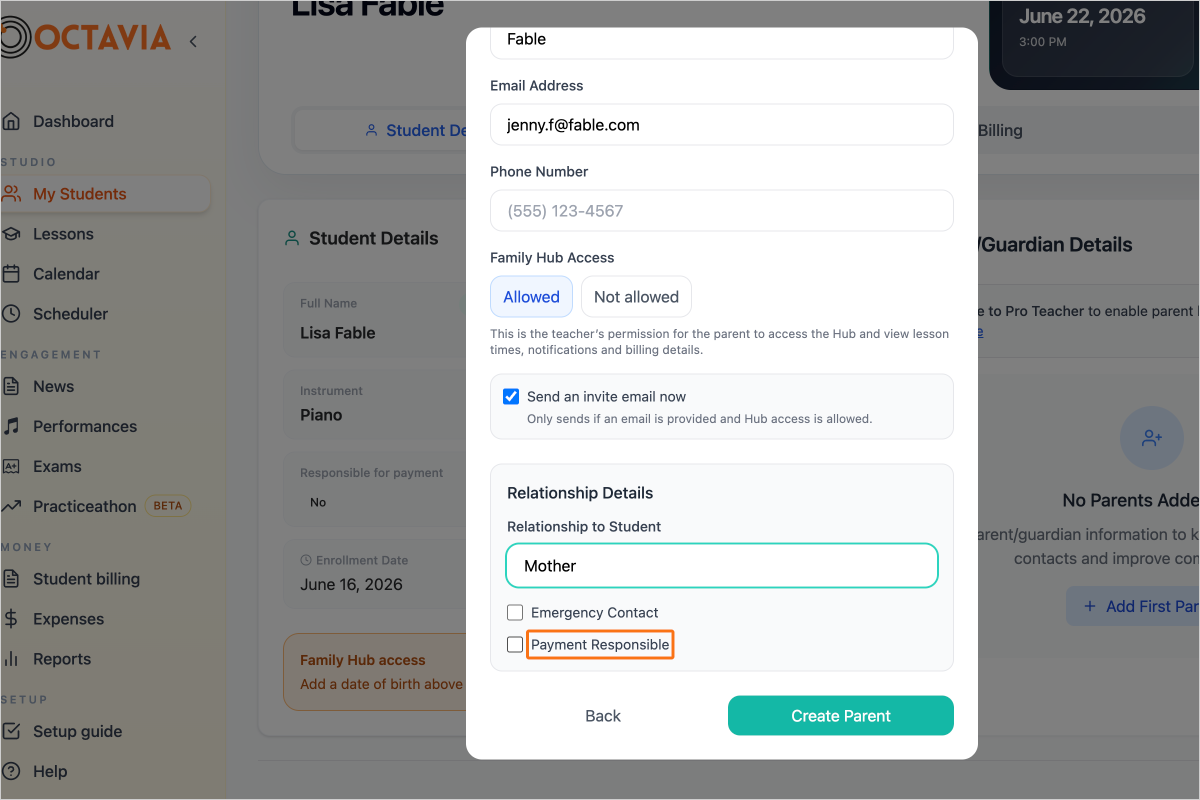
Step 8 - Select "Payment Responsible" if they will be responsible for paying for the student's lessons

Step 9 — Click on the button "Create Parent"
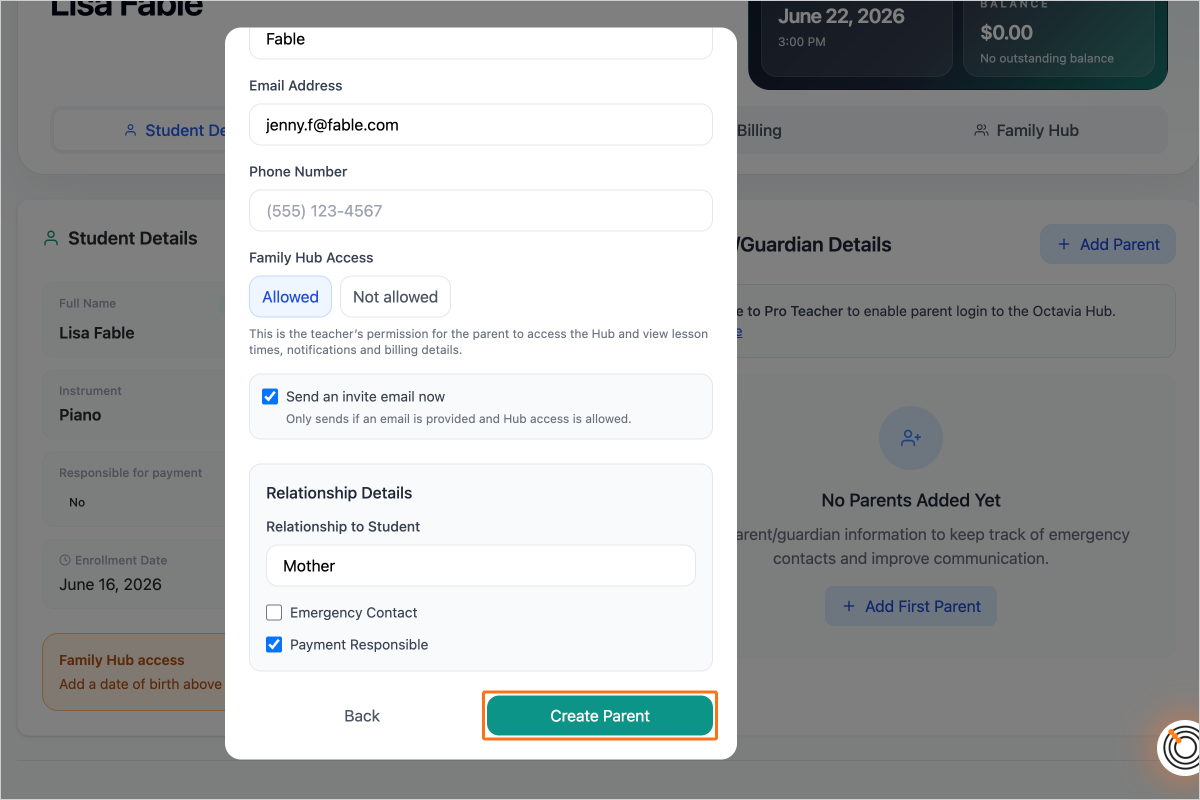
Step 9 - Click on the button "Create Parent"

Step 10 — To edit the parent's details after creation, click on the pencil icon next to the parent name
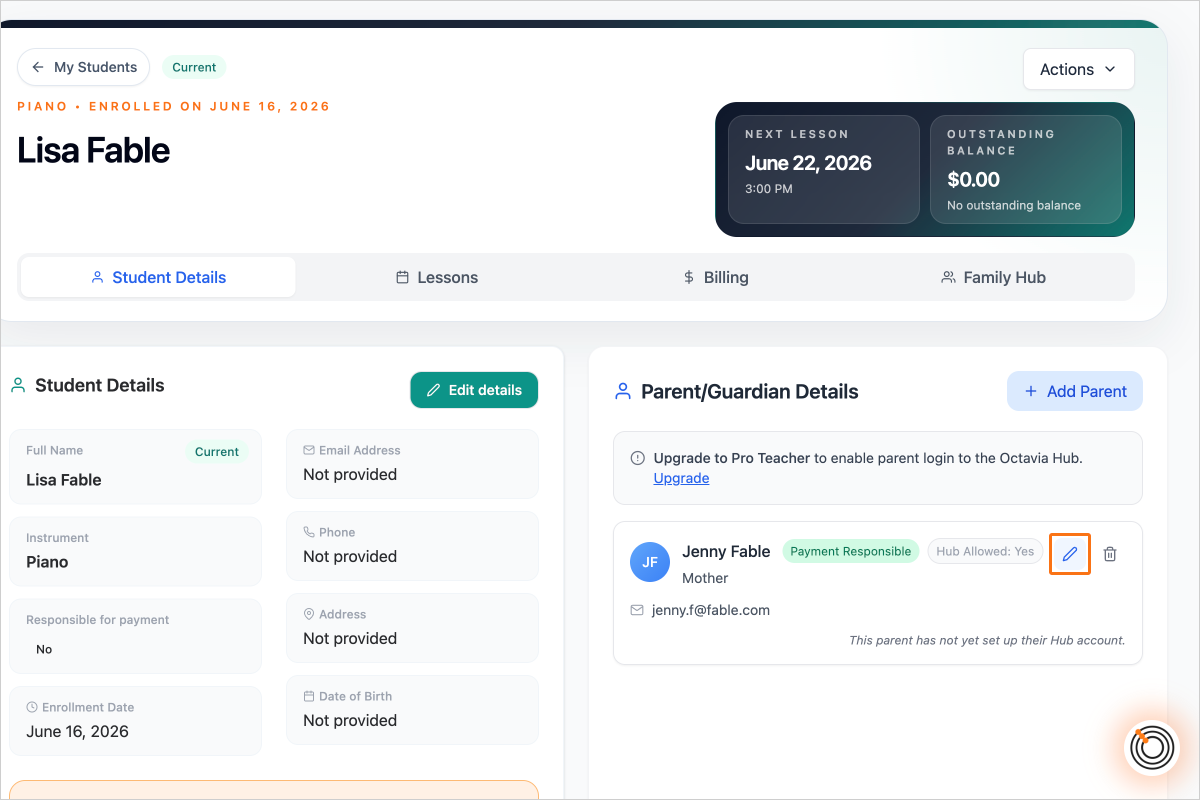
Step 10 - To edit the parent's details after creation, click on the pencil icon next to the parent name

Create your account

You’ll have access to the complete Pro Teacher features for 30 days, and after that you’ll still be able to access all the free features to run your studio.