How to enable online makeup bookings for your families and students
makeup bookingsonline bookingsfamiliesstudentscalendarsettings
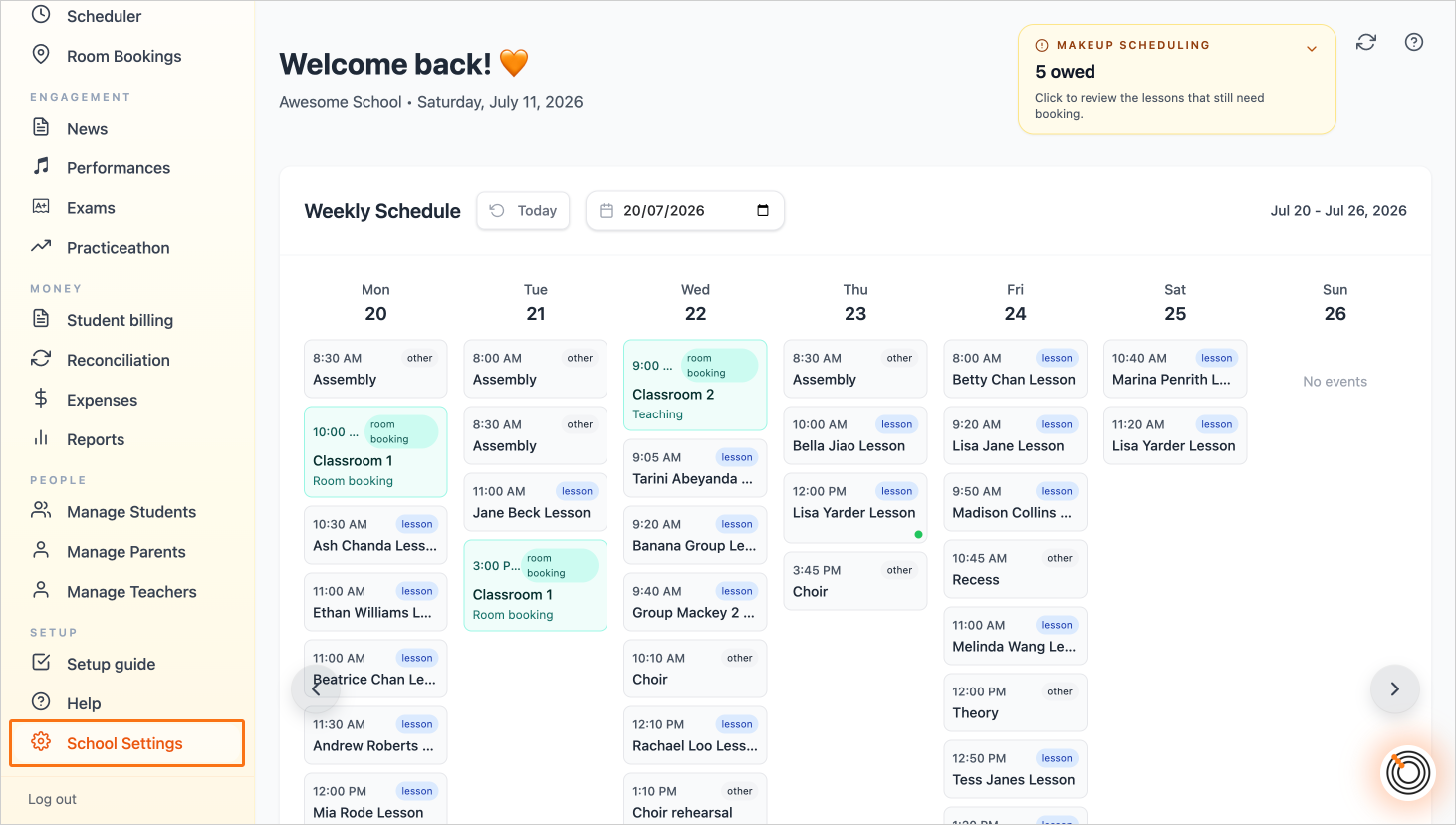
Step 1 — Click on the link "School Settings"
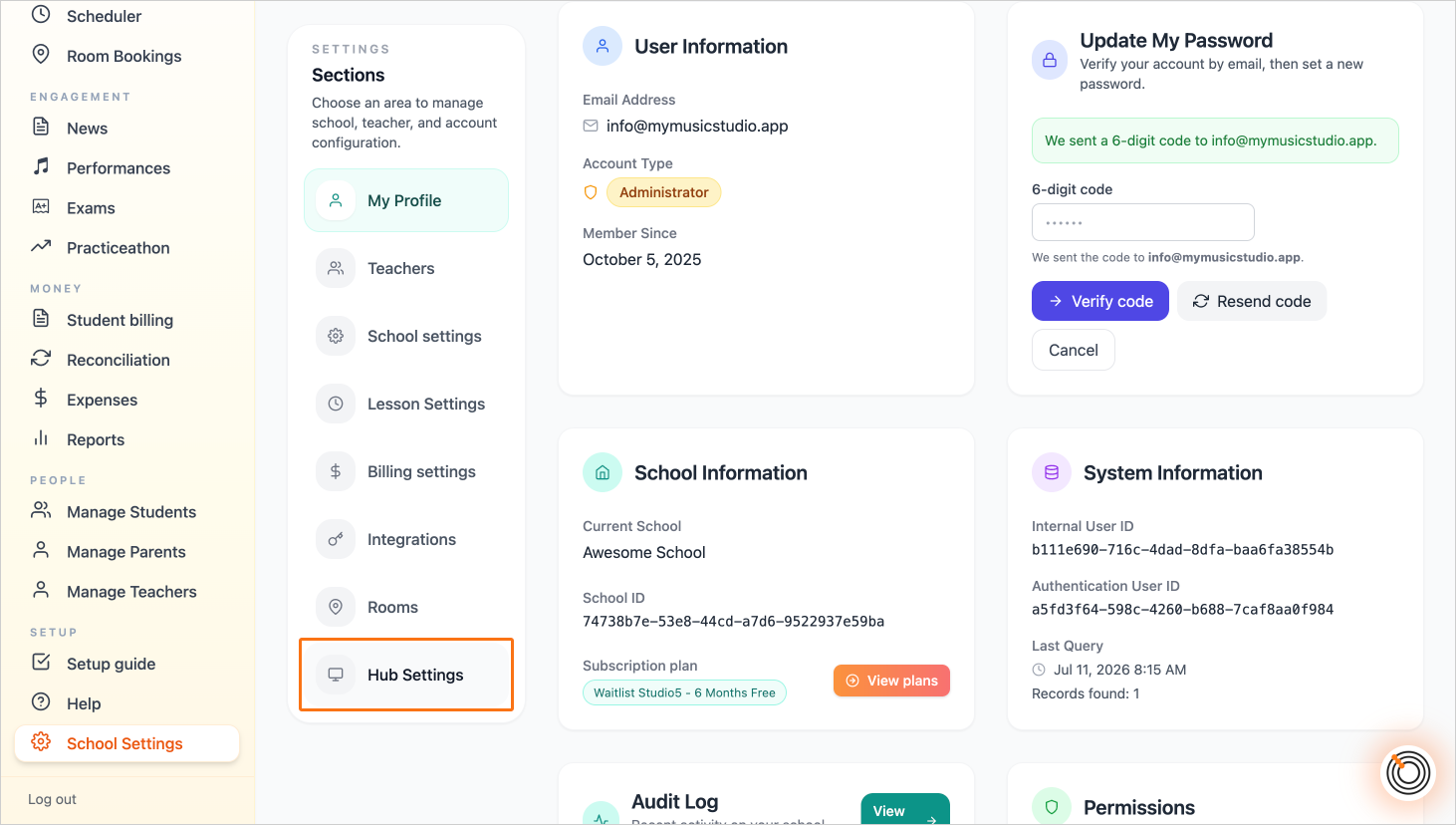
Step 2 — Navigate to "Hub Settings"
Step 3 — Toggle the "Enable online makeup booking" setting to on
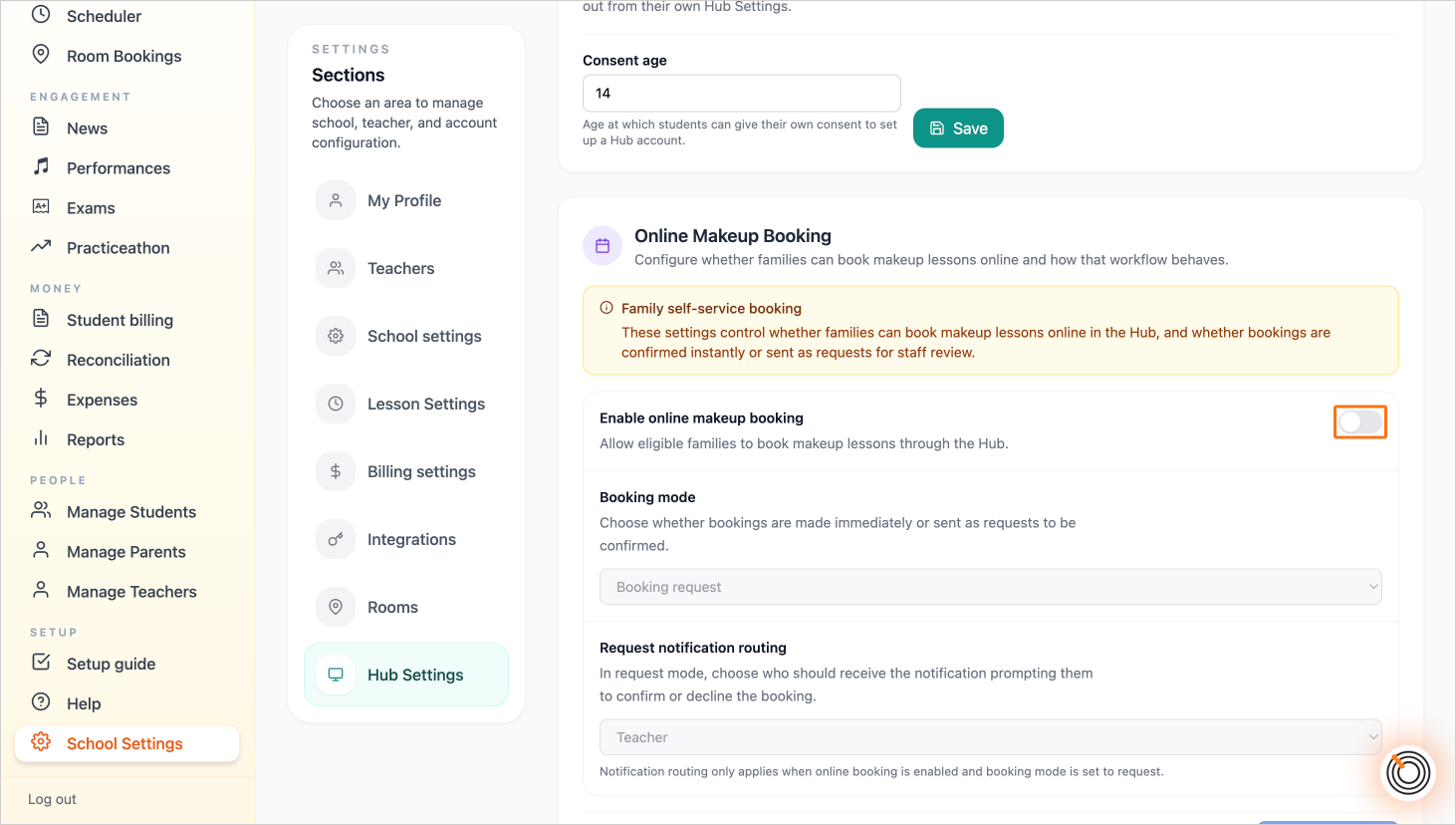
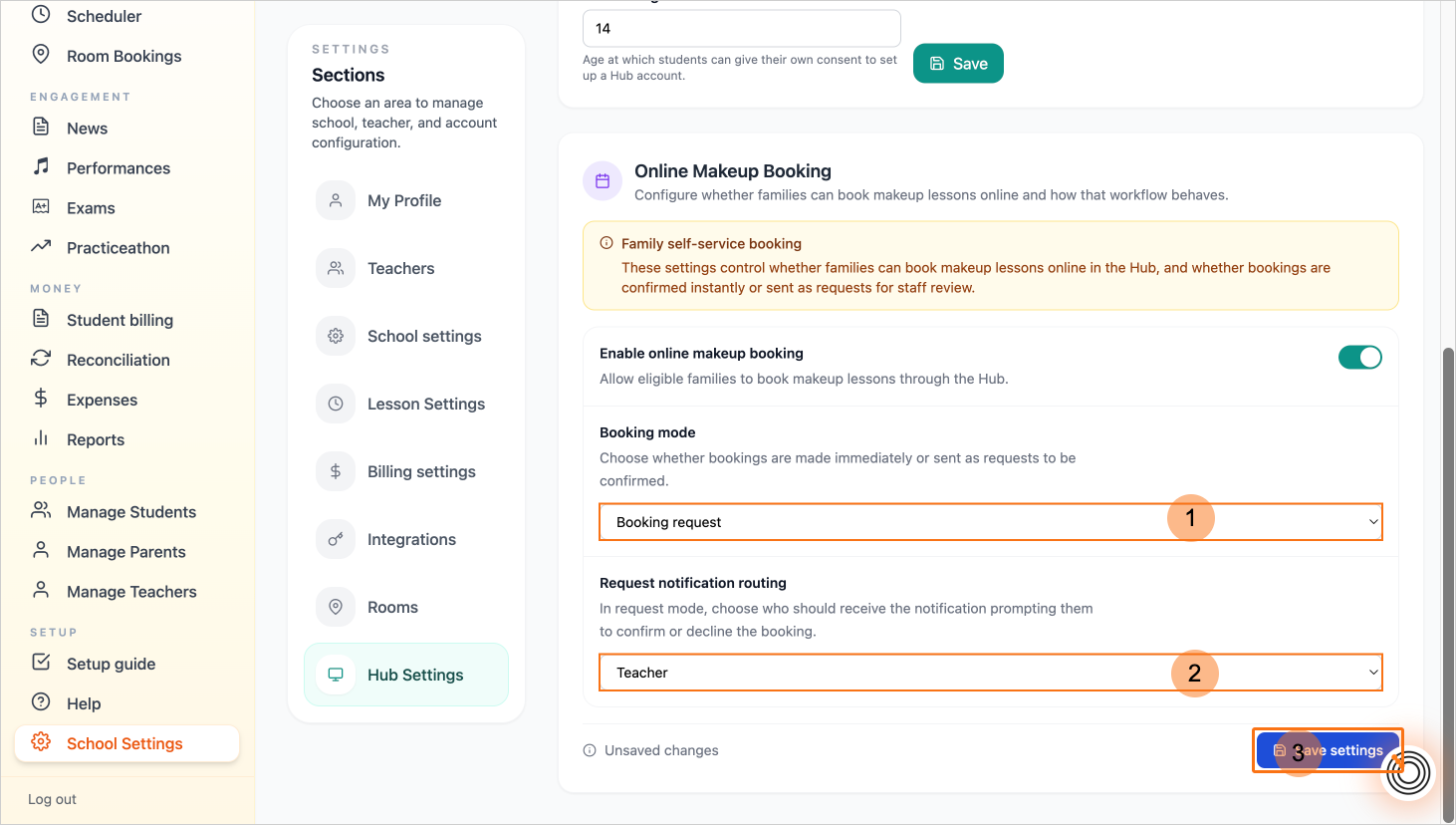
Step 4 — Select your booking mode ("Booking request" means a teacher needs to confirm a makeup booking, "Instant booking" means the booking is made instantly when initiated by a family from the allowed makeup slots"
Decide whether notifications about booking requests should go to the relevant teacher, the admin accounts of the school, or both.
Click on the button "Save settings"
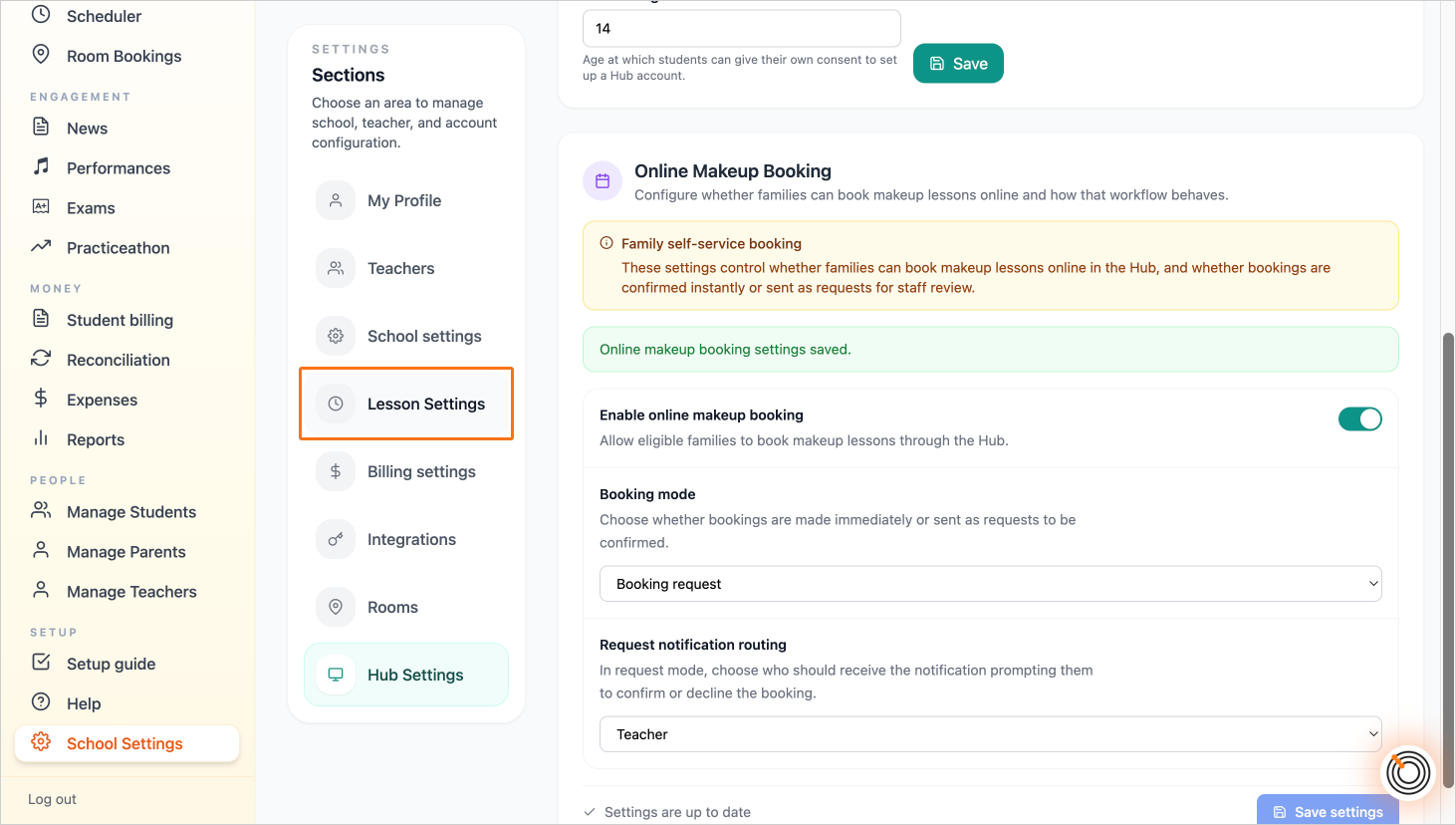
Step 5 — To set the expiry settings for the makeup bookings, go to "Lesson Settings". (This will enable you to control how long a family can see a makeup booking and how long after the original lesson they can still book it for.)
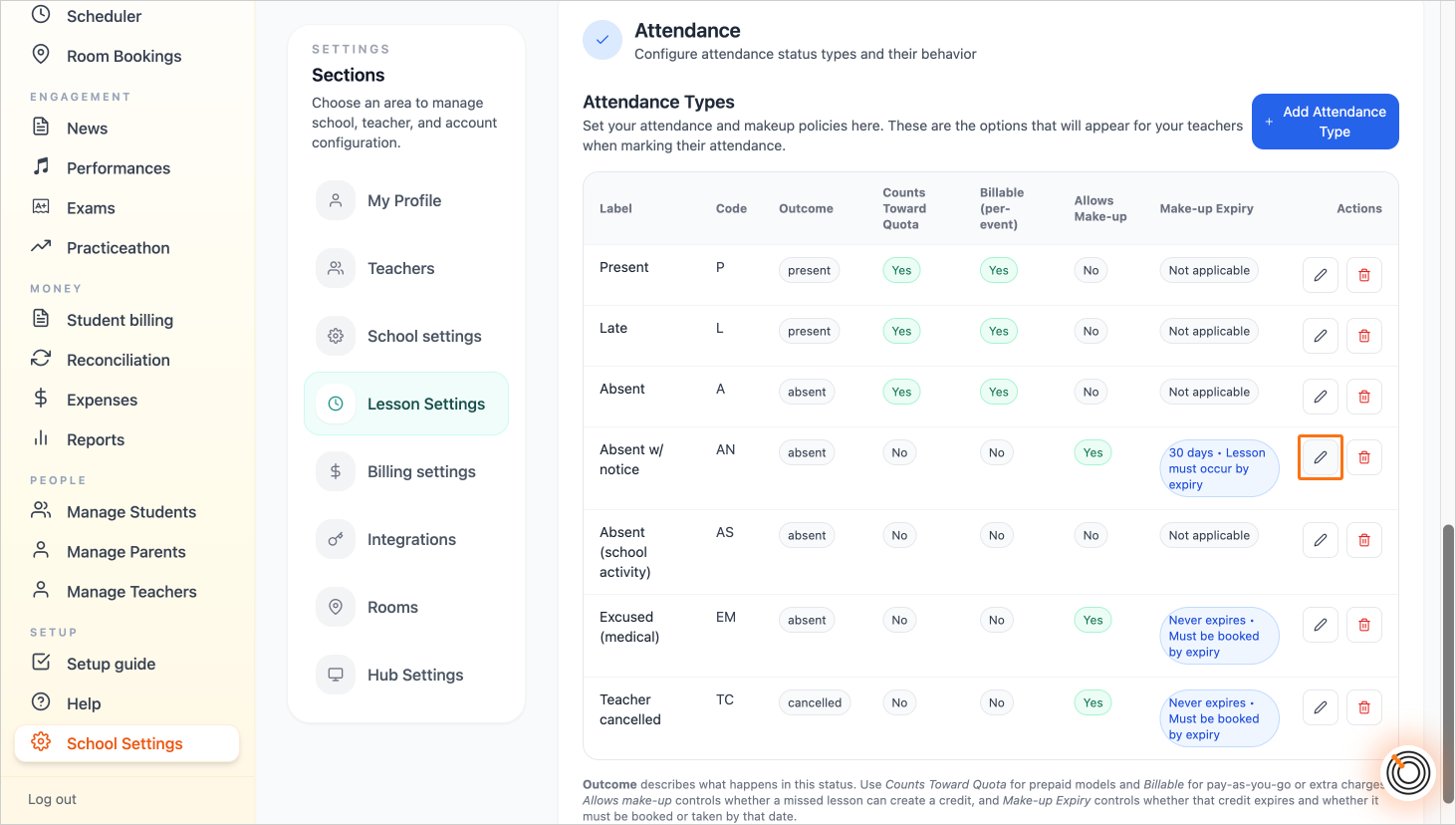
Step 6 — Click on the edit pencil icon next to the attendance row that allows a makeup lesson
Step 7 — Set the "Expiry days". This determines how long the makeup is valid for after the original lesson.
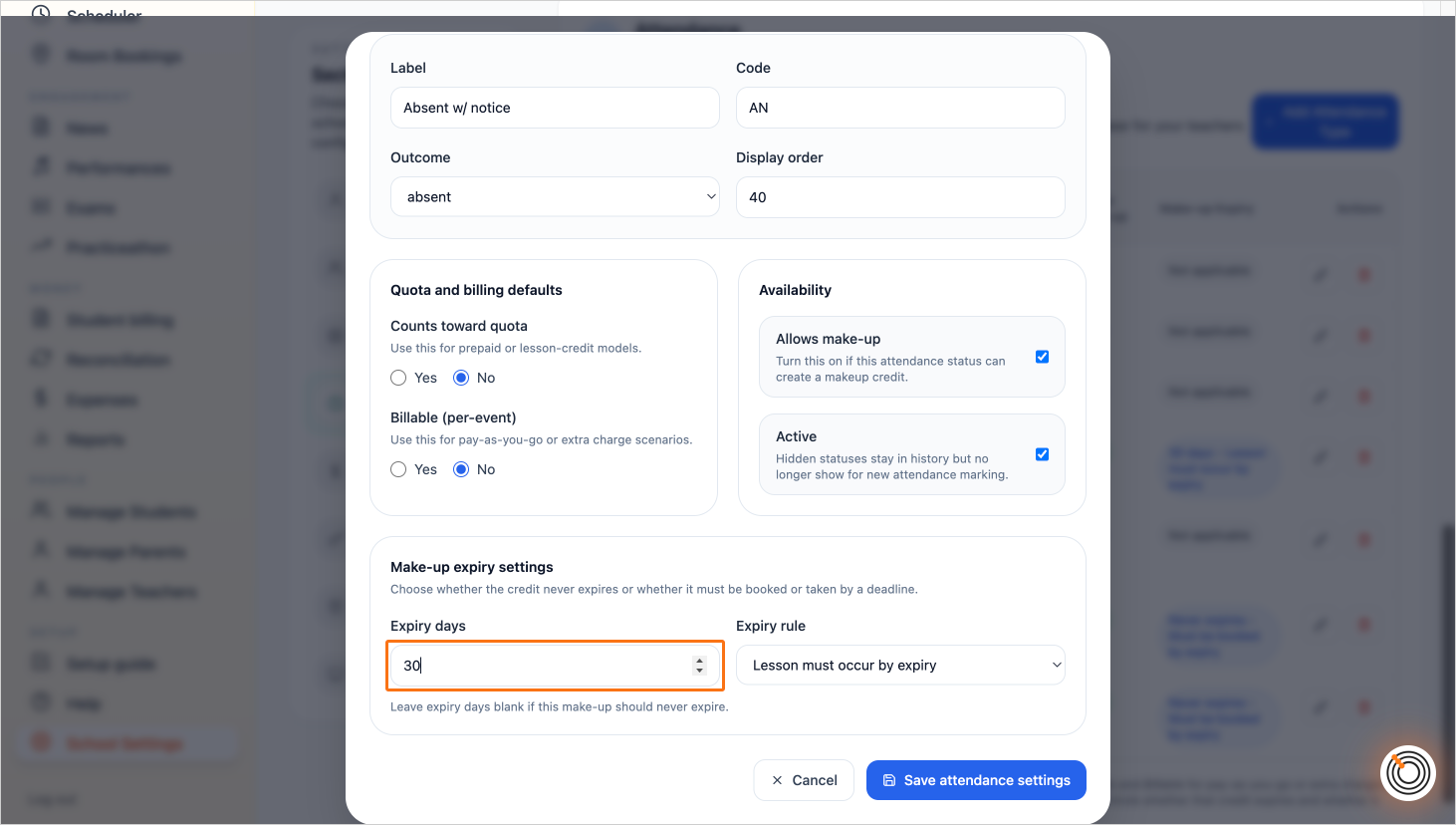
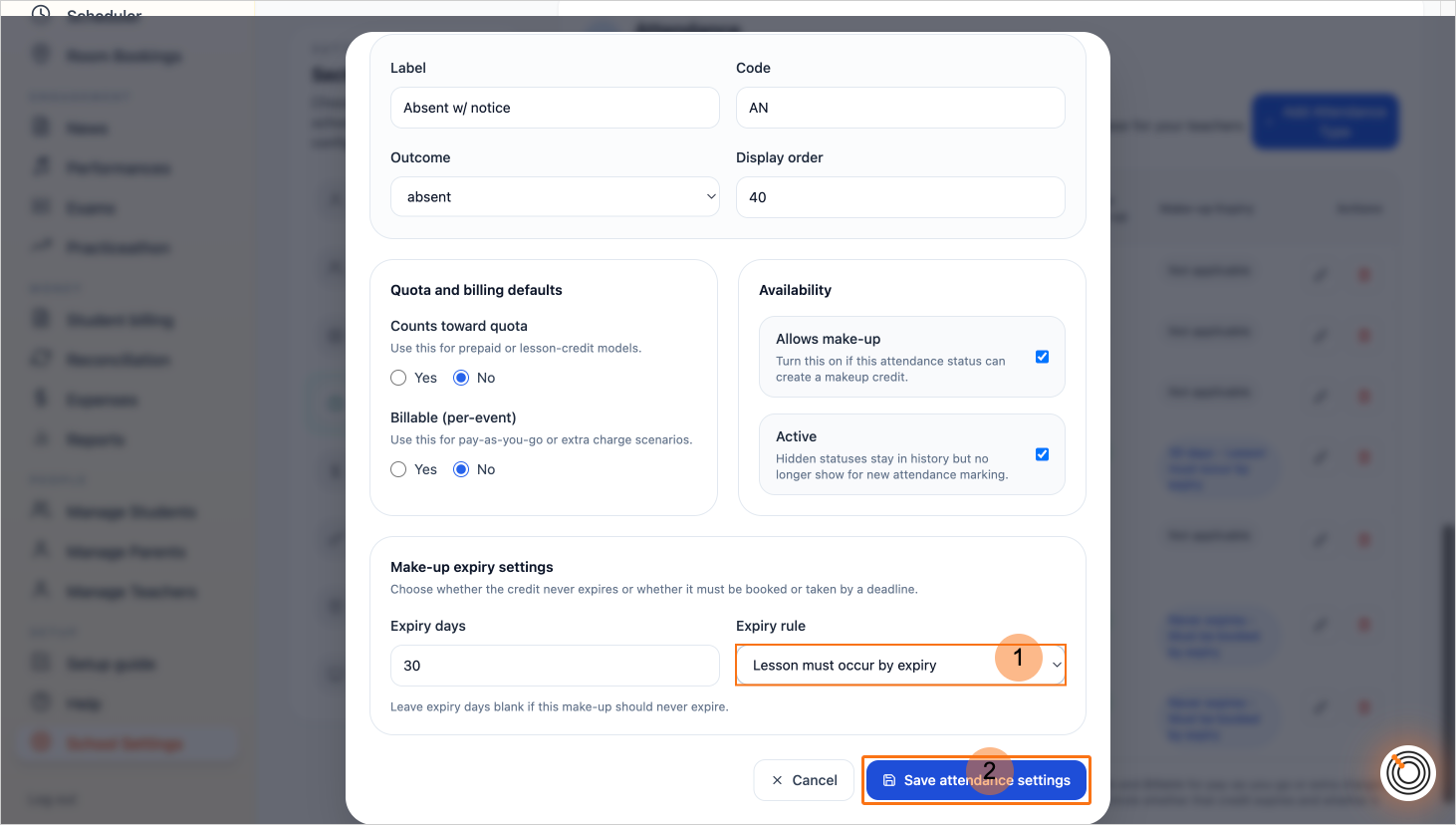
Step 8 — Set the expiry rule. "Lesson must occur by expiry" means the student must book the makeup lesson before expiry, AND make sure the makeup lesson is before expiry. "Must be booked by expiry" means the lesson must be booked before expiry, but the makeup lesson can occur at any time.
Click on the button "Save attendance settings"
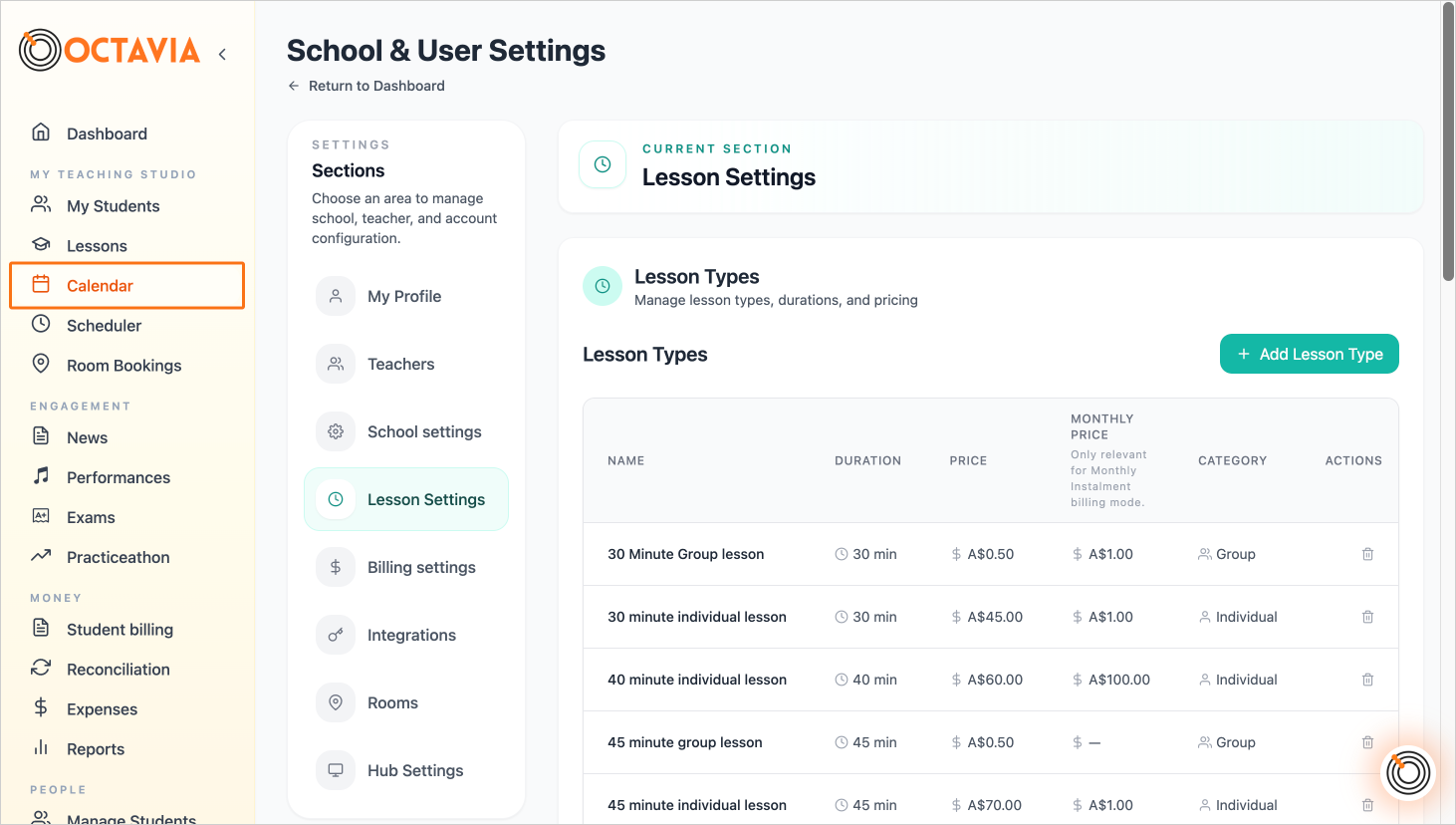
Step 9 — To manage your available makeup slots, and view/act on pending makeup requests, go to your "Calendar"
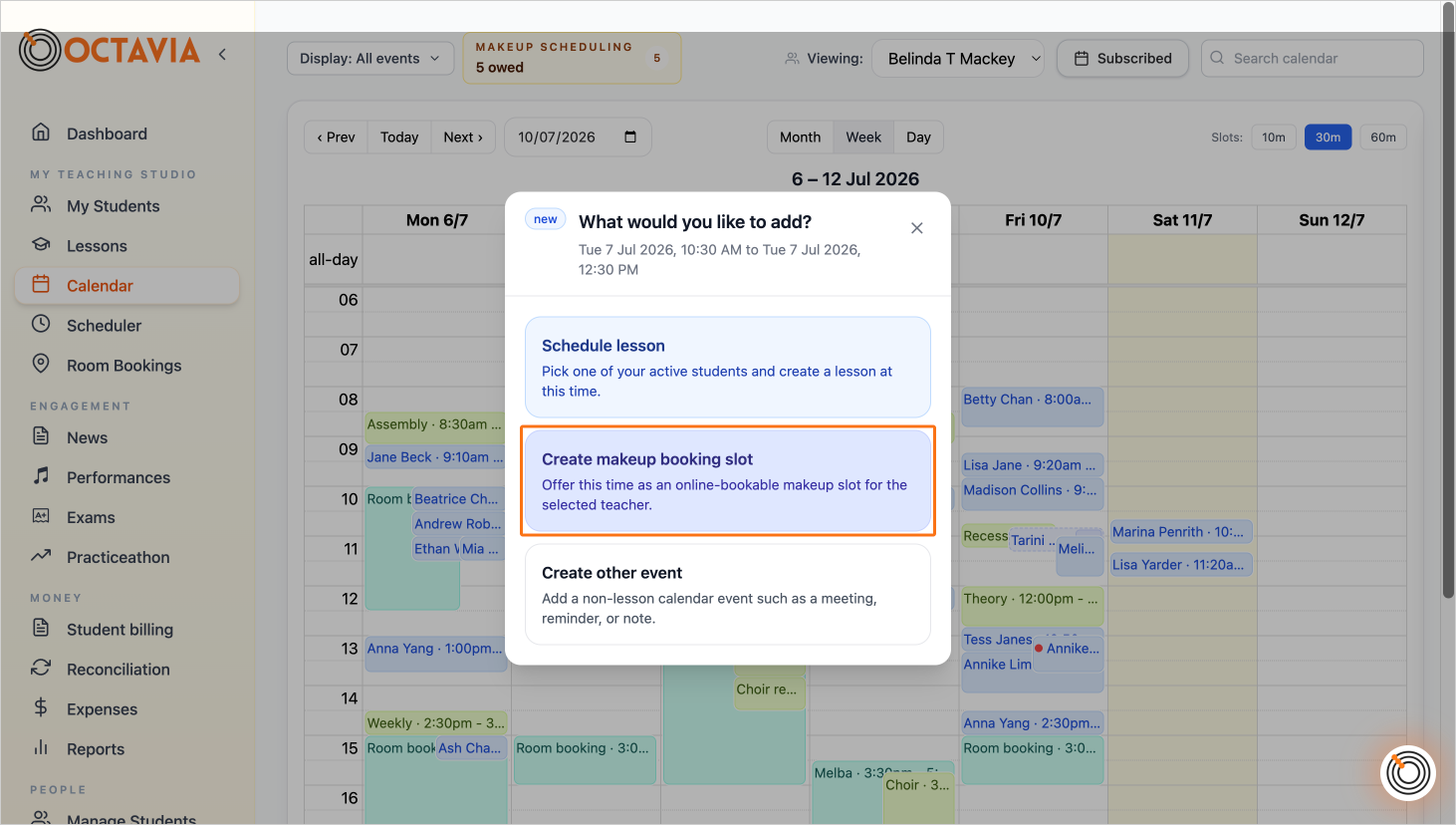
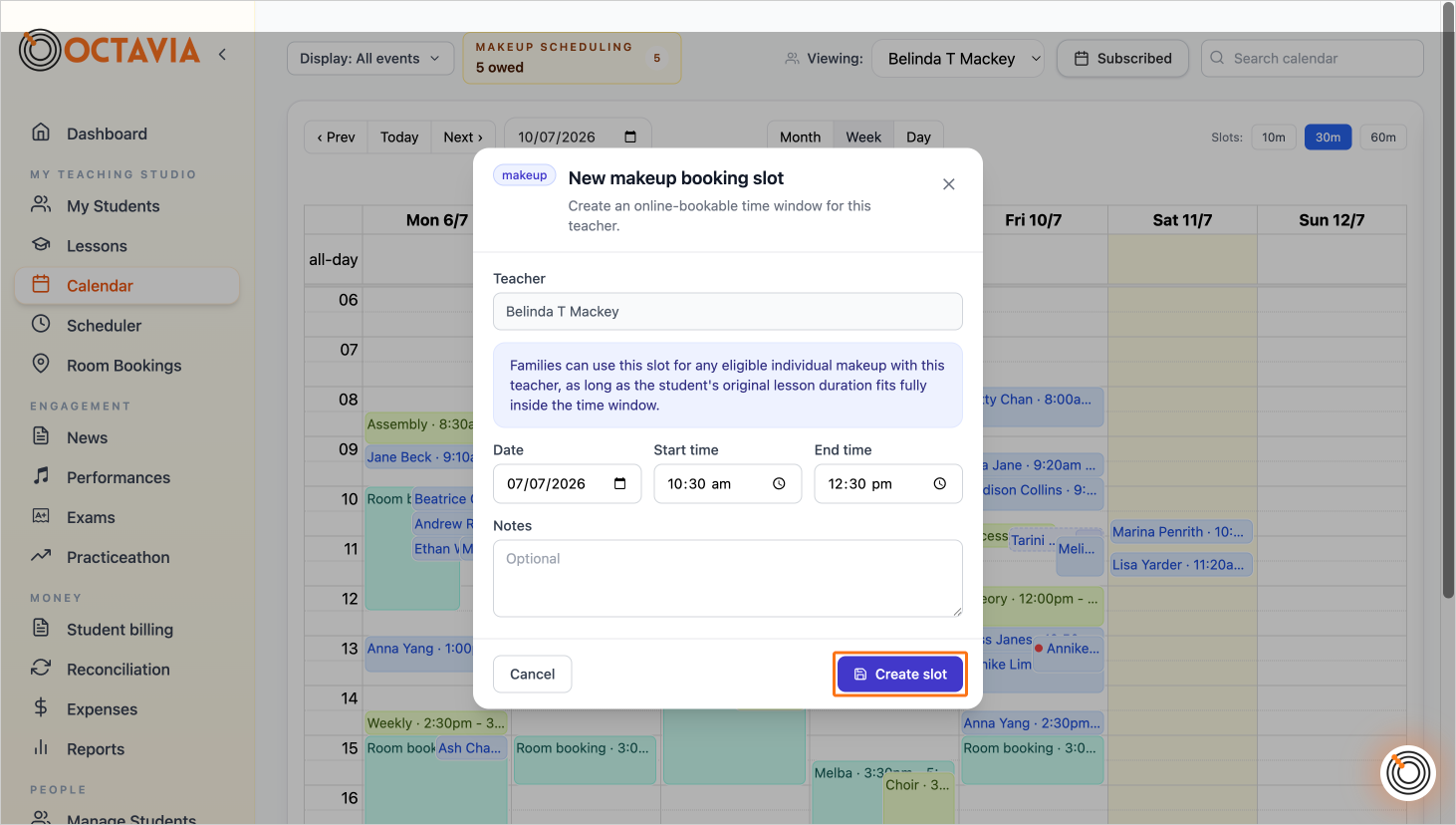
Step 10 — To create an available makeup window for students to book, click and drag on the calendar over the time range you want to make available, and then select "Create makeup booking slot"
Step 11 — Confirm the details and click "Create slot"
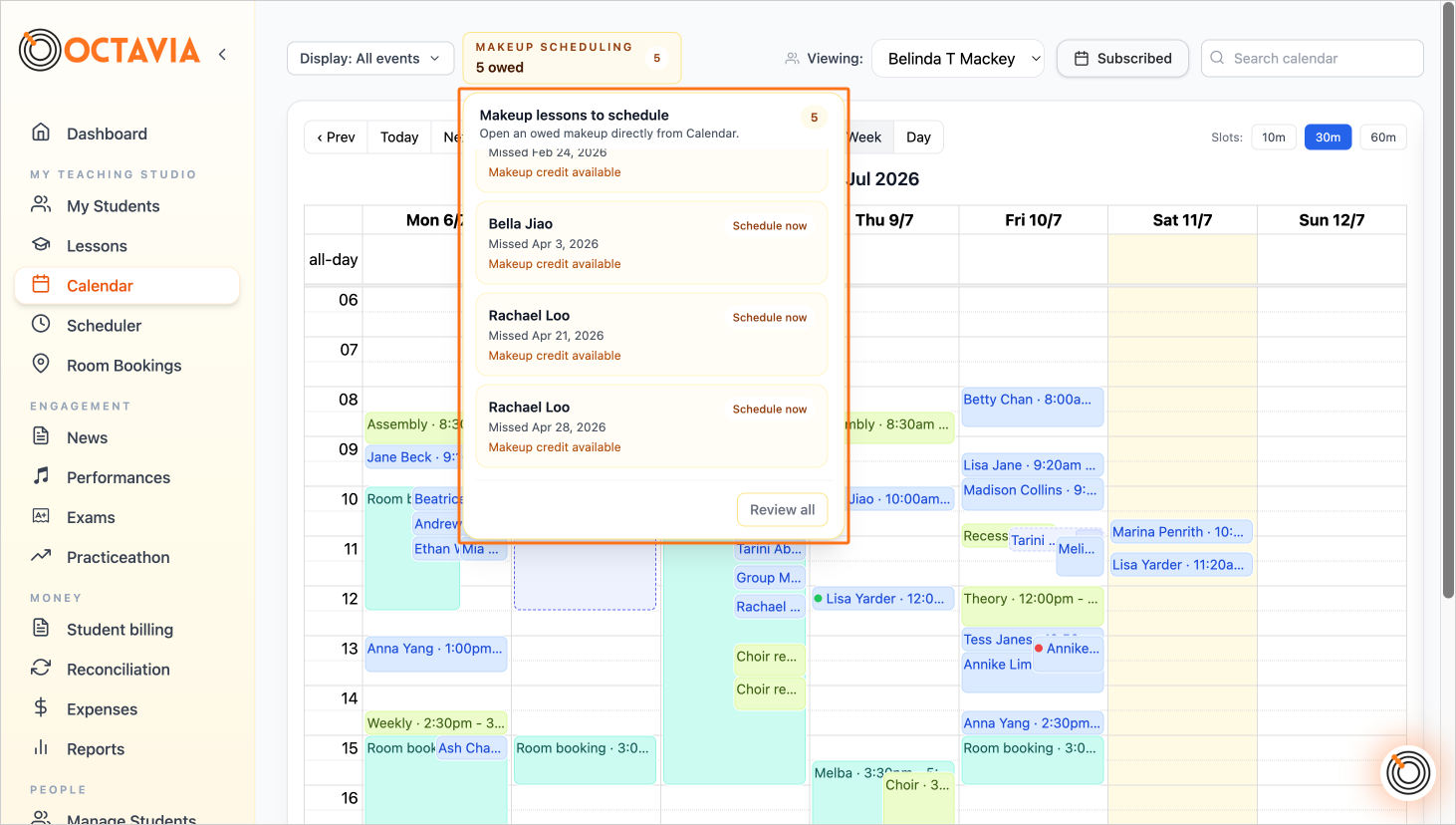
Step 12 — To view pending requests and makeup lessons that need to be scheduled, click on the MAKEUP SCHEDULING card
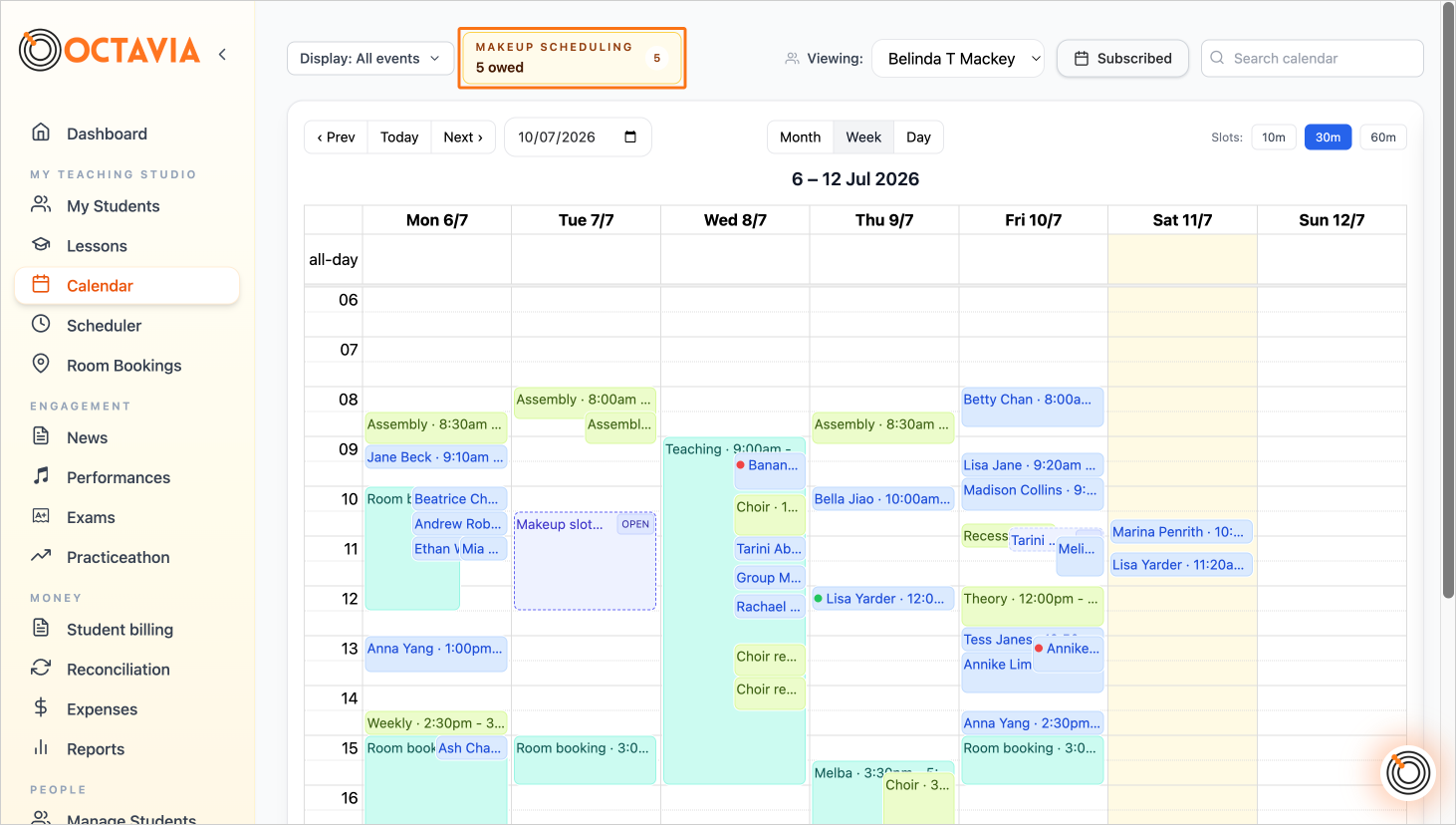
Step 13 — You will see a list of makeup lessons that need to be scheduled, and any pending booking requests from families.