
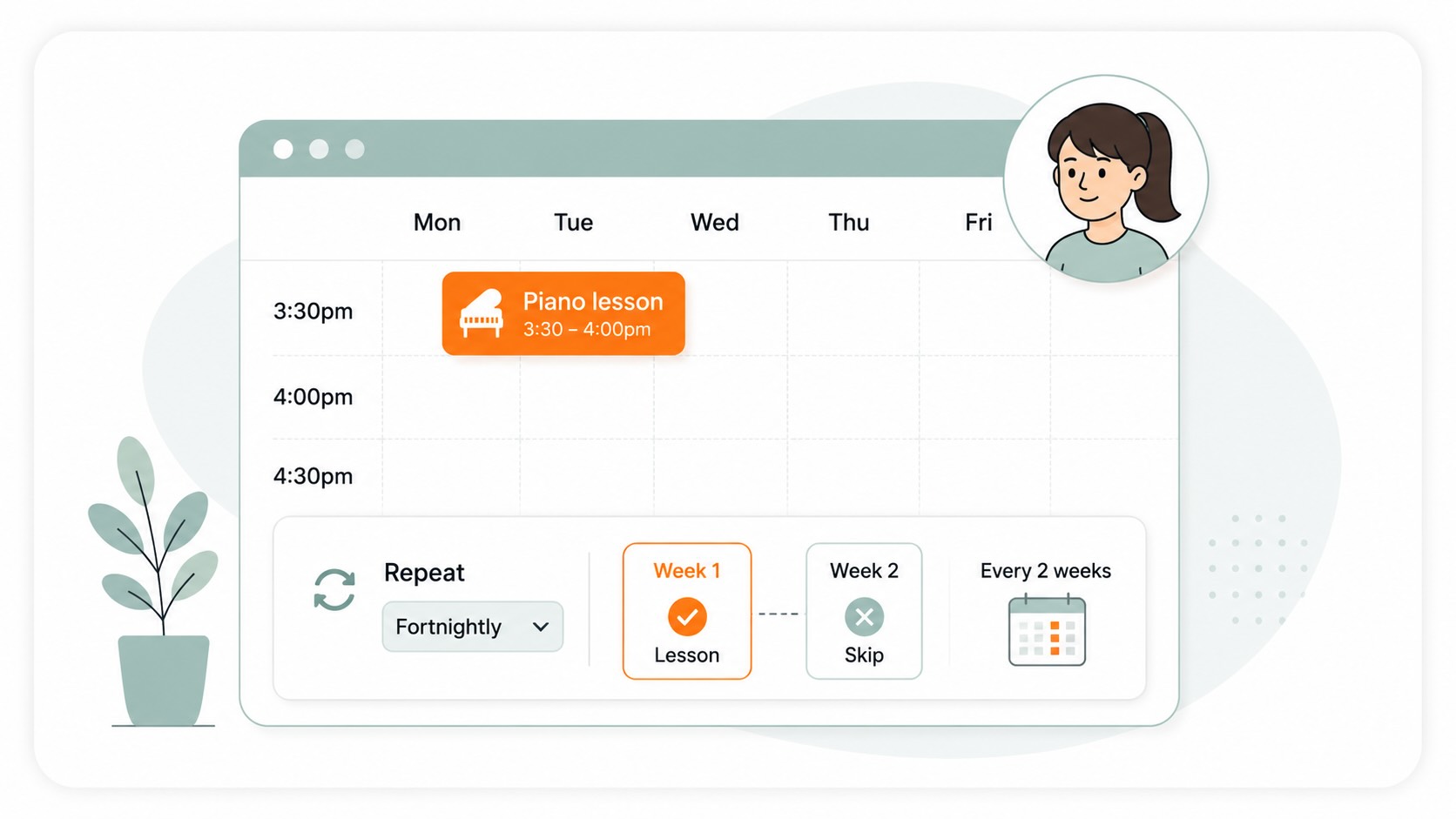
How to set up a fortnightly student

How to set up a fortnightly student

studentsfortnightlytimetableschedulerschool settings

Step 1 — Navigate to School Settings
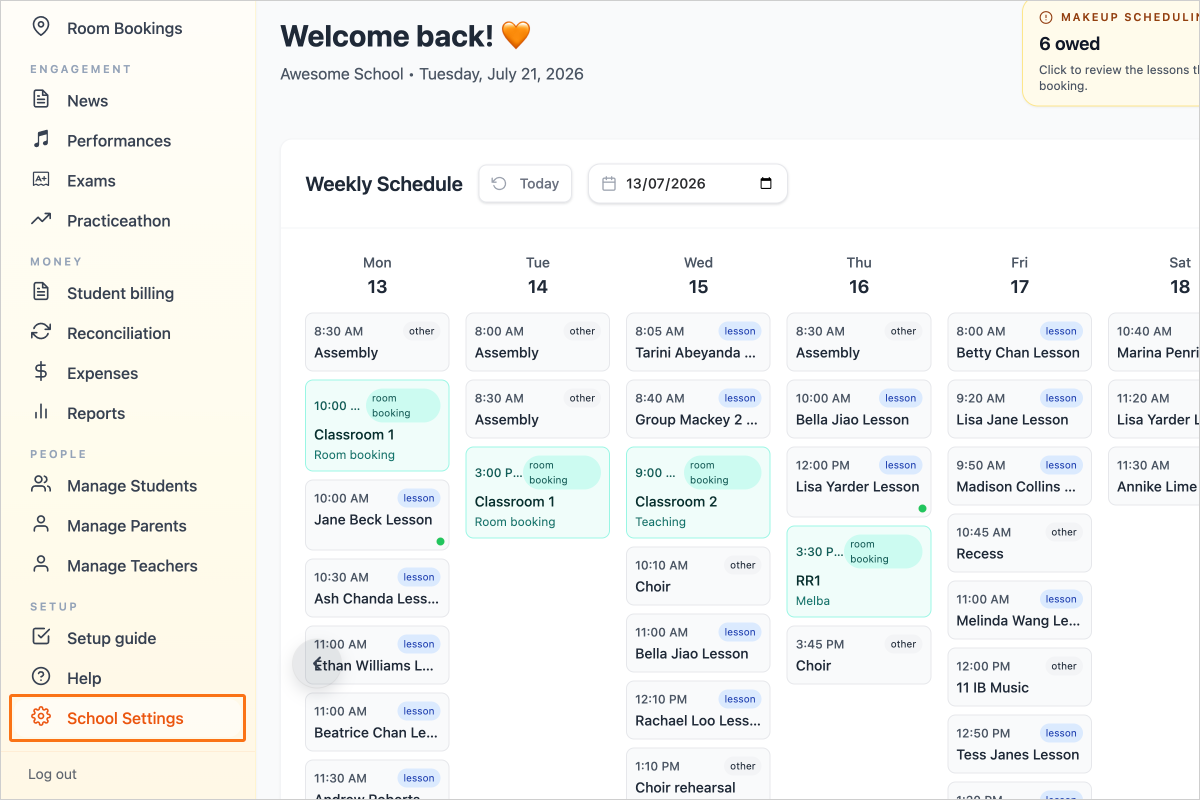
Step 1 - Navigate to School Settings

Step 2 — Go to the School settings tab
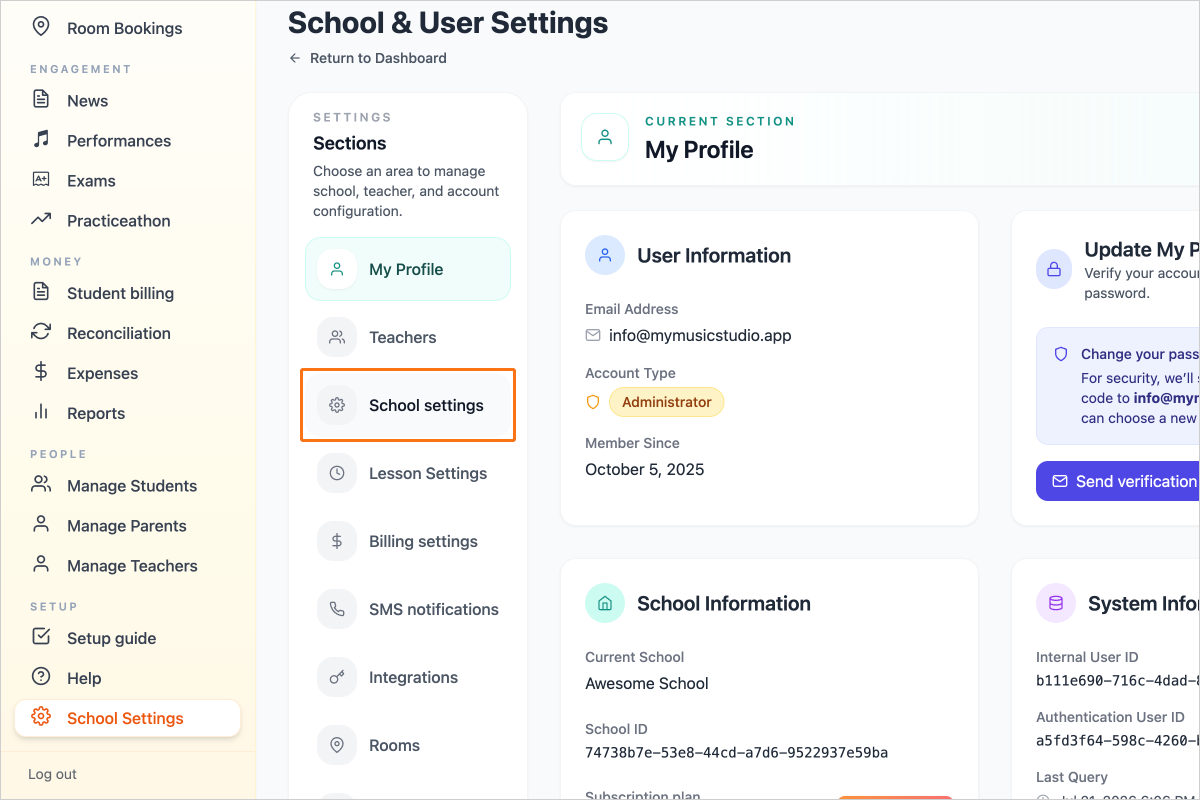
Step 2 - Go to the School settings tab

Step 3 — Set the Fortnight Anchor Date. The date that you select will determine what week is Week A.
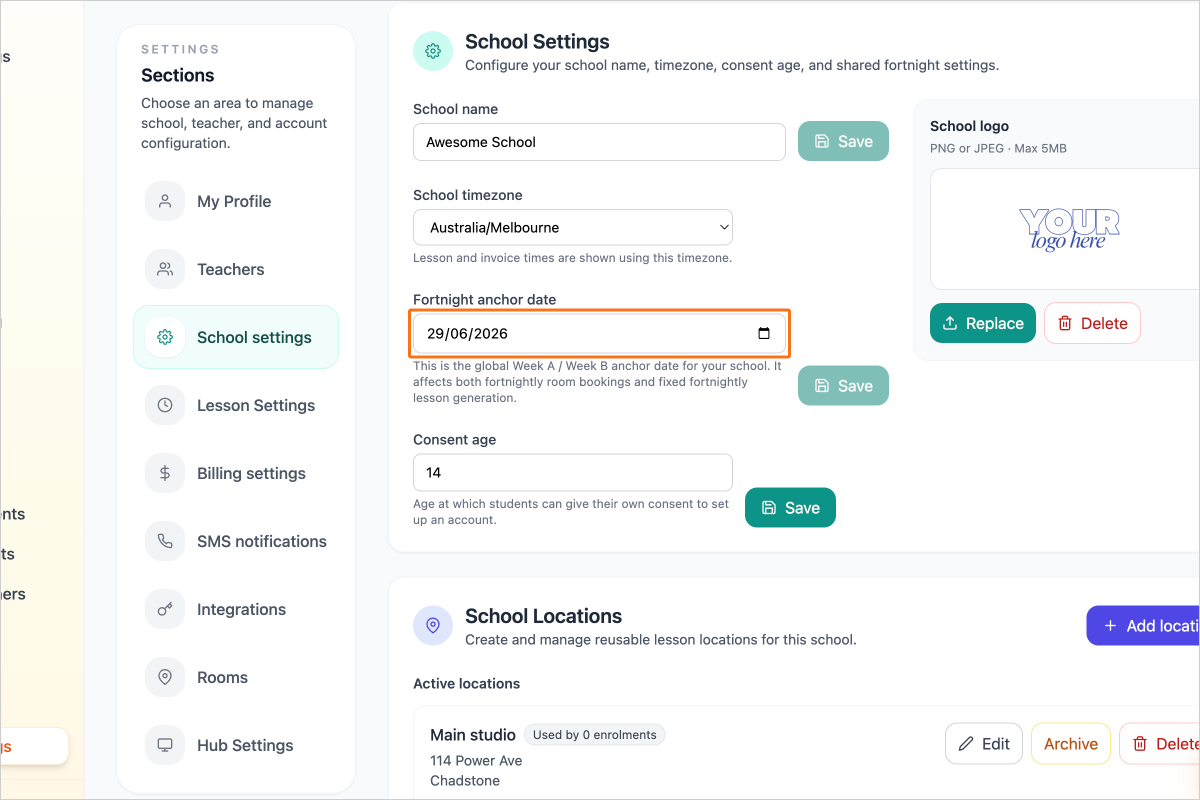
Step 3 - Set the Fortnight Anchor Date. The date that you select will determine what week is Week A.

Step 4 — Save School Fortnight Settings
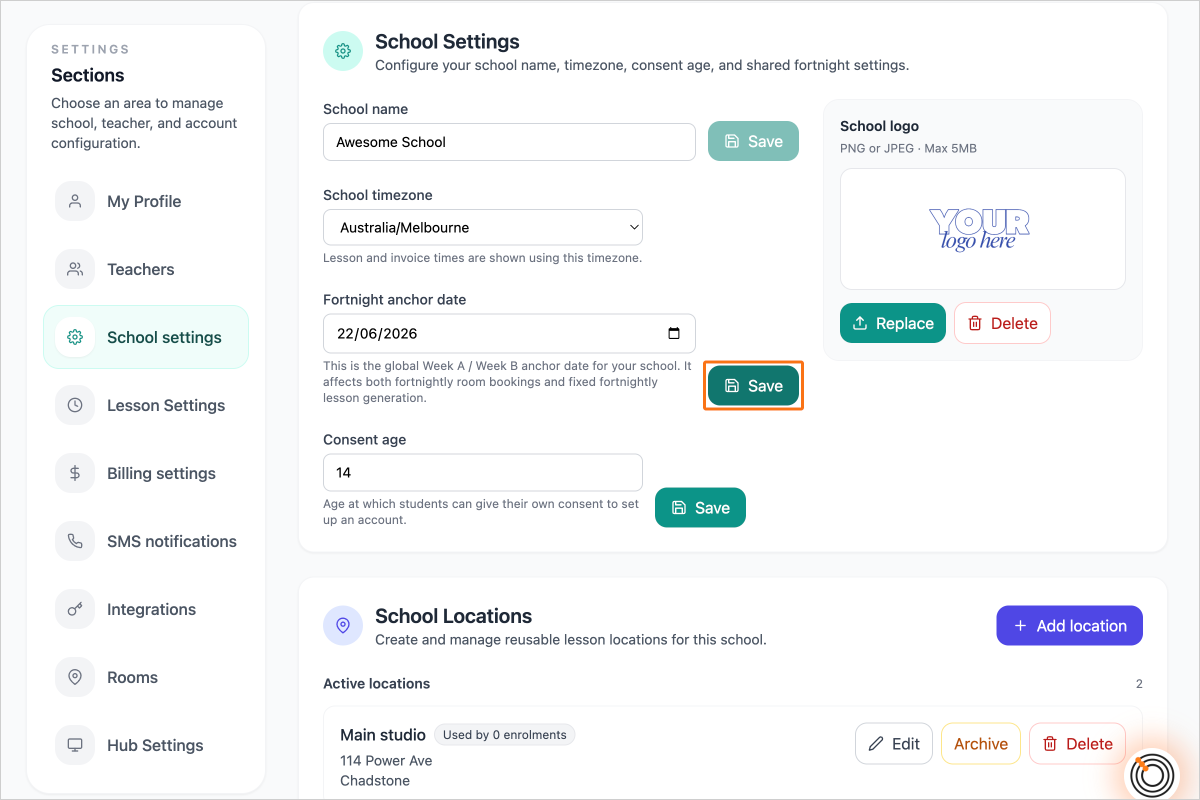
Step 4 - Save School Fortnight Settings

Step 5 — To setup a student as a fortnightly student, navigate to My Students
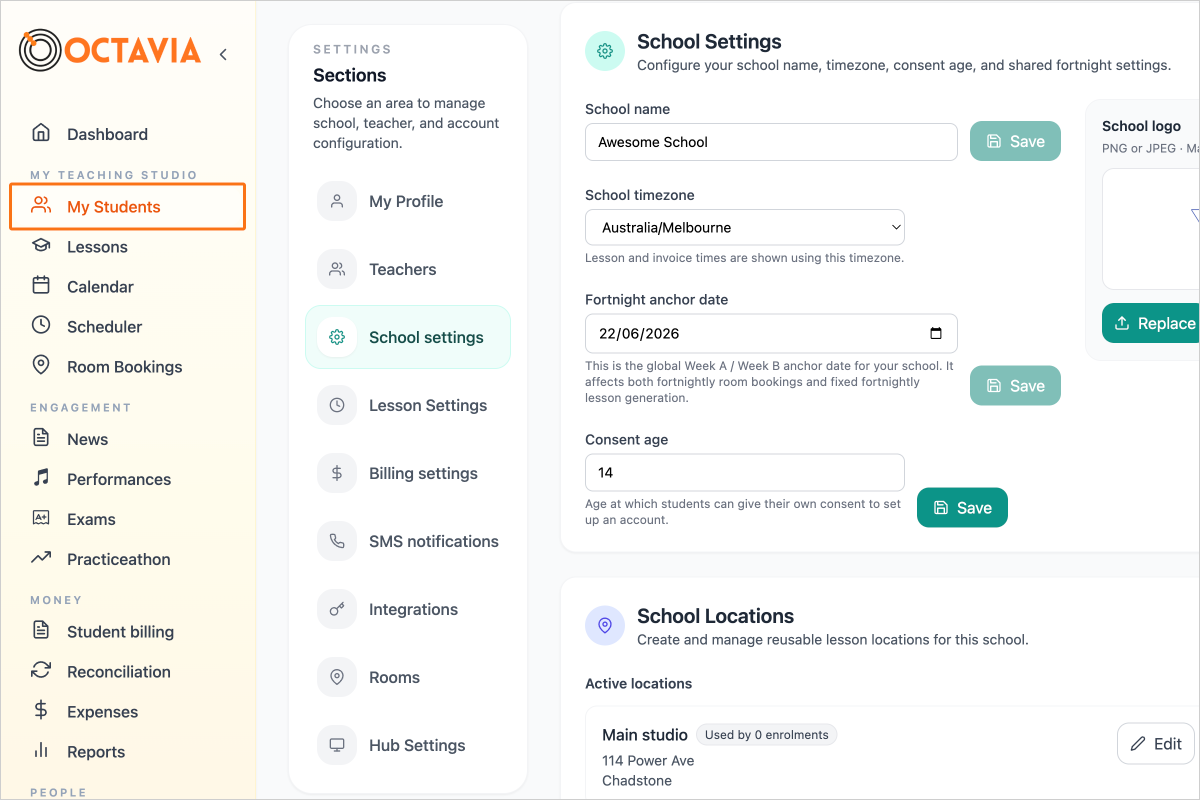
Step 5 - To setup a student as a fortnightly student, navigate to My Students

Step 6 — Select a Student
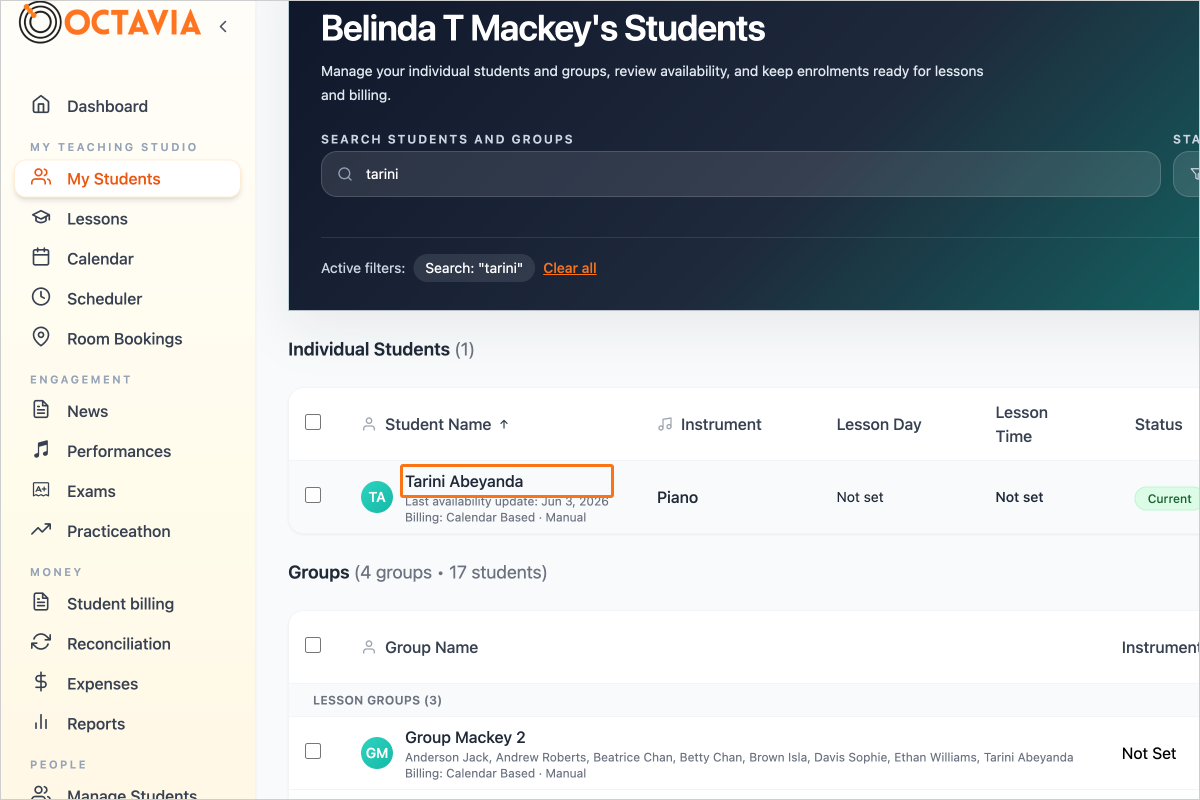
Step 6 - Select a Student

Step 7 — Open Student Lesson Settings
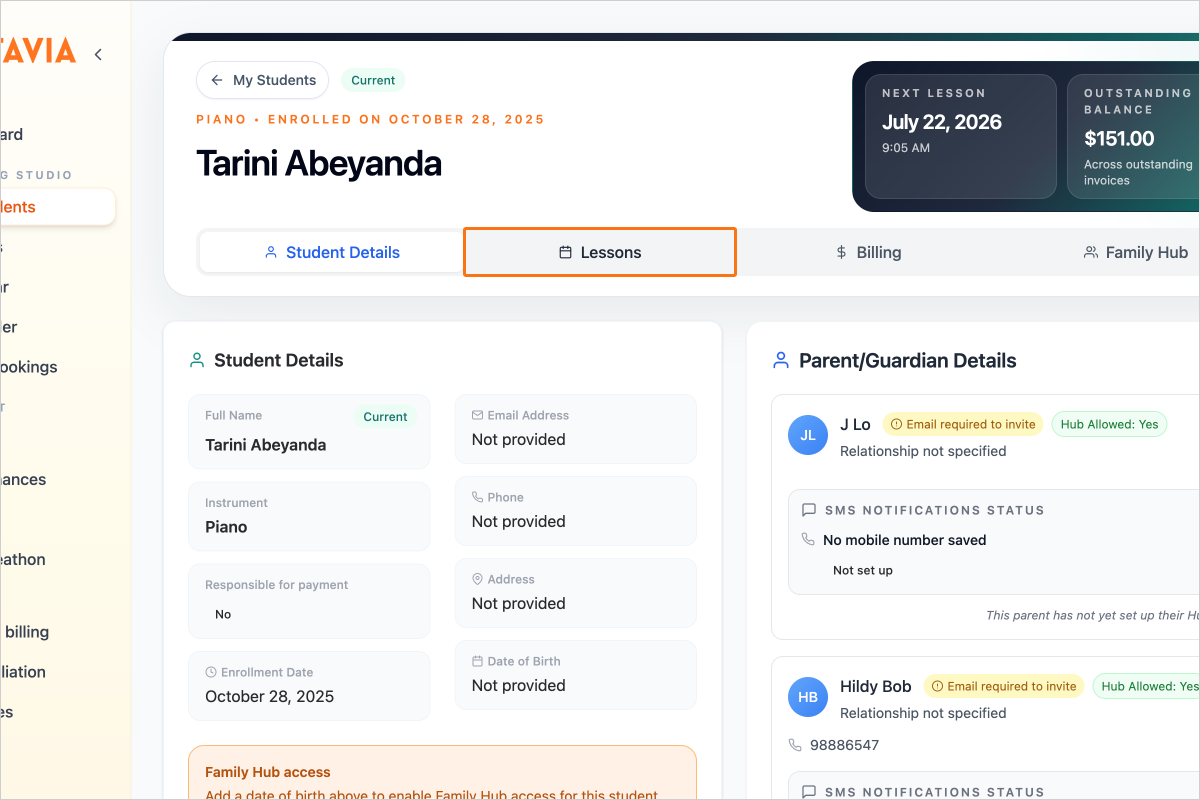
Step 7 - Open Student Lesson Settings

Step 8 — Define Timetable Type and select Fixed
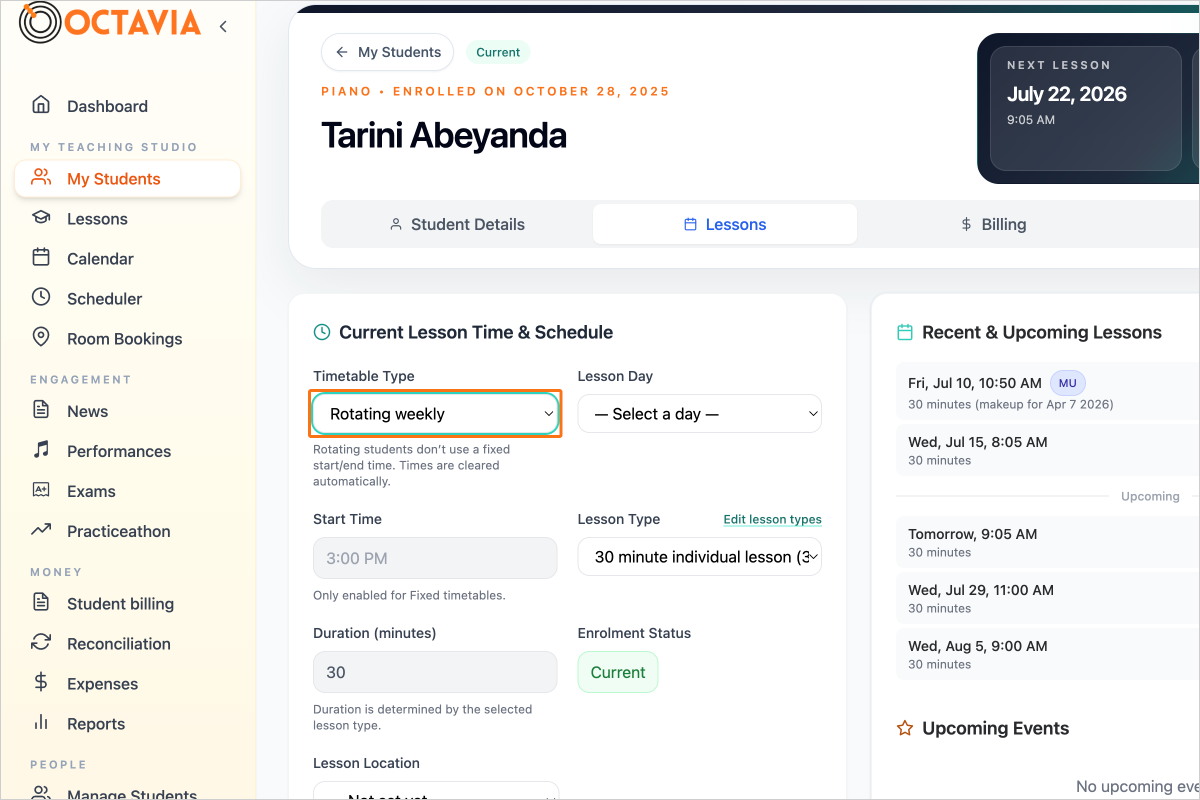
Step 8 - Define Timetable Type and select Fixed

Step 9 — Select "Fixed" under Timetable Type and select Fixed. Click on the Fixed Recurrence field
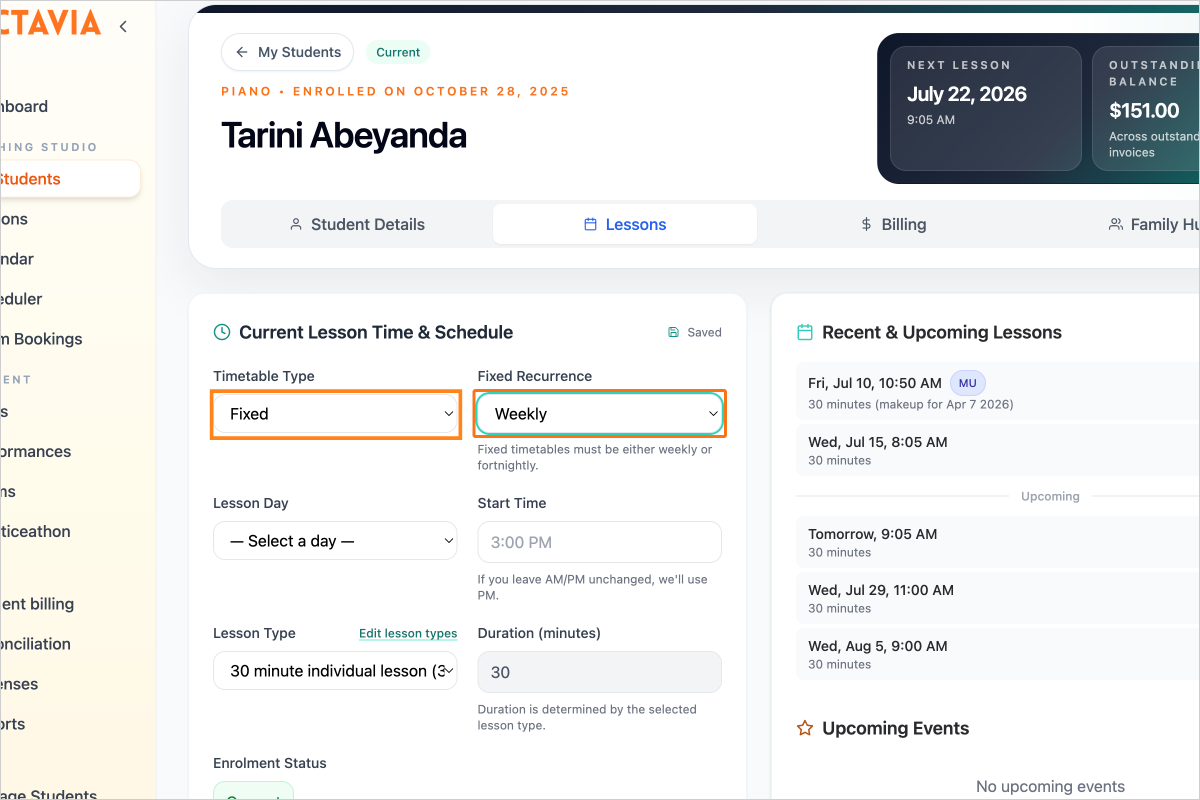
Step 9 - Select "Fixed" under Timetable Type and select Fixed. Click on the Fixed Recurrence field

Step 10 — and select Fortnightly. Click on the Fortnight Week and select either Week A or Week B. Click on the question mark icon to see your school's Week A or B dates.
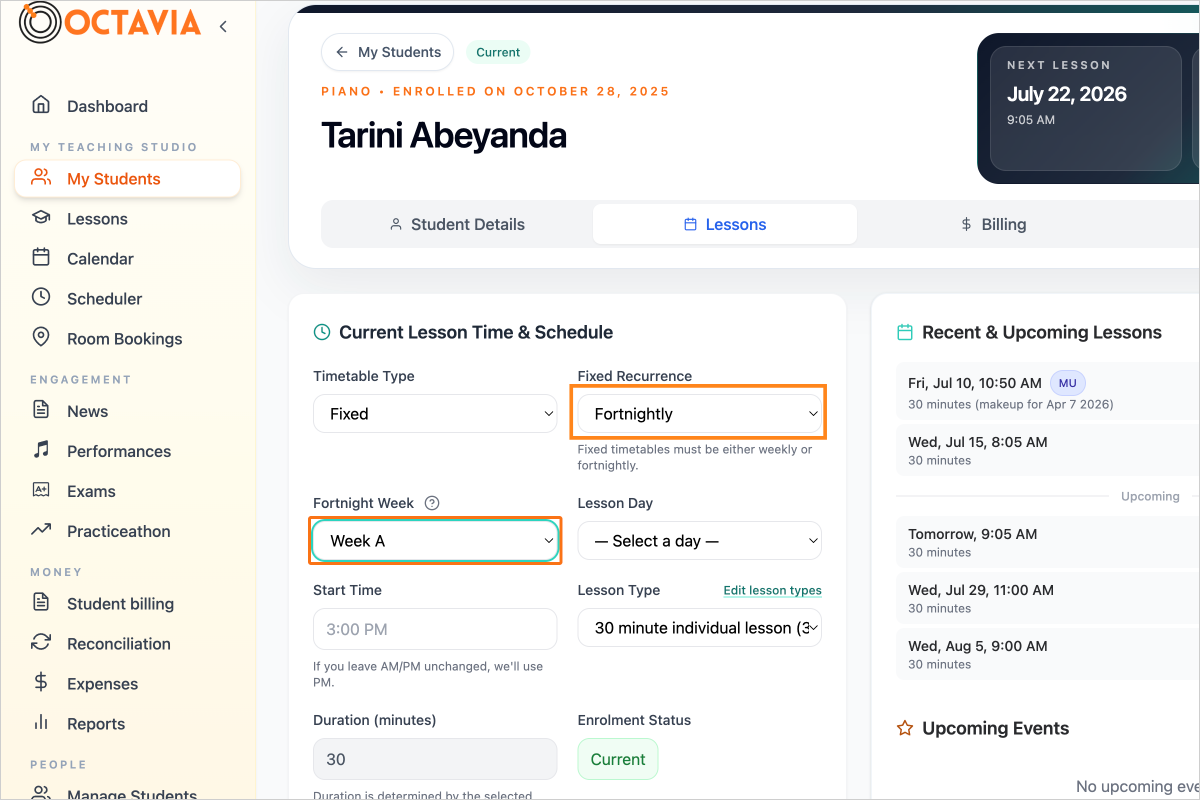
Step 10 - and select Fortnightly. Click on the Fortnight Week and select either Week A or Week B. Click on the question mark icon to see your school's Week A or B dates.

Step 11 — Select Lesson Day and time
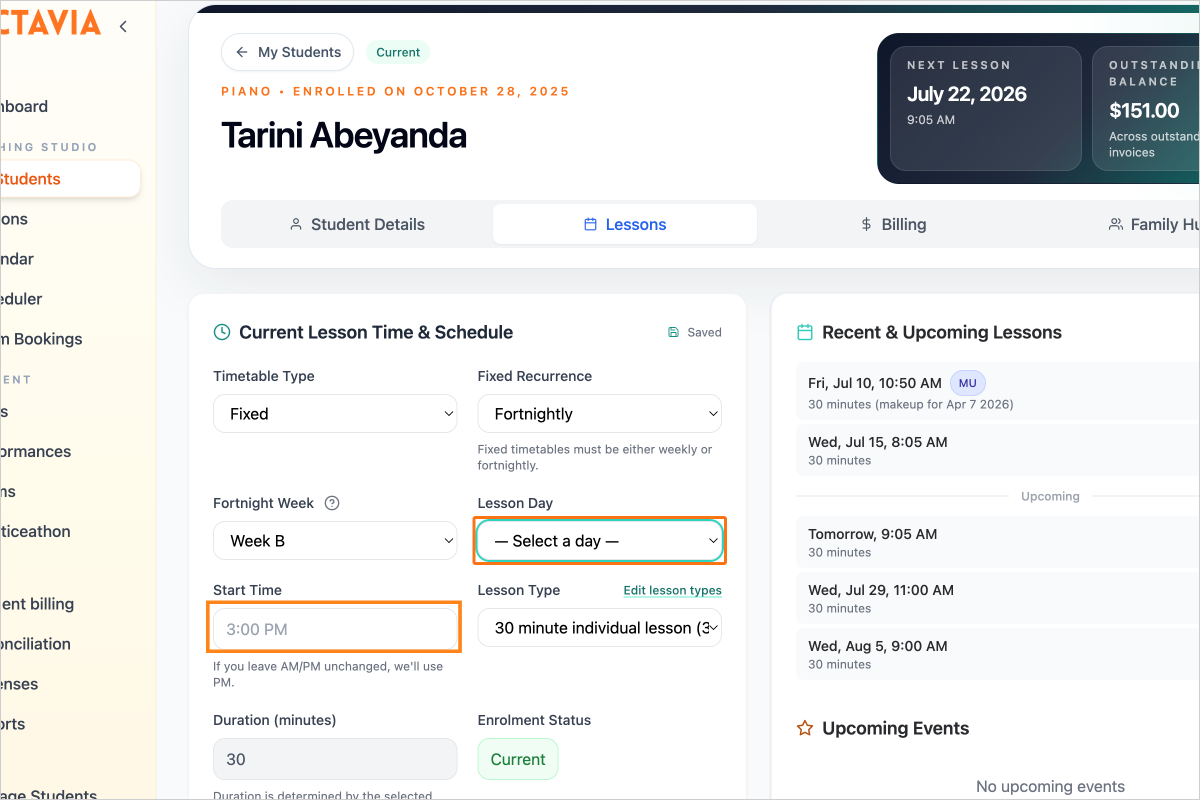
Step 11 - Select Lesson Day and time

Step 12 — You can also update your student's timetable type by going to the Scheduler
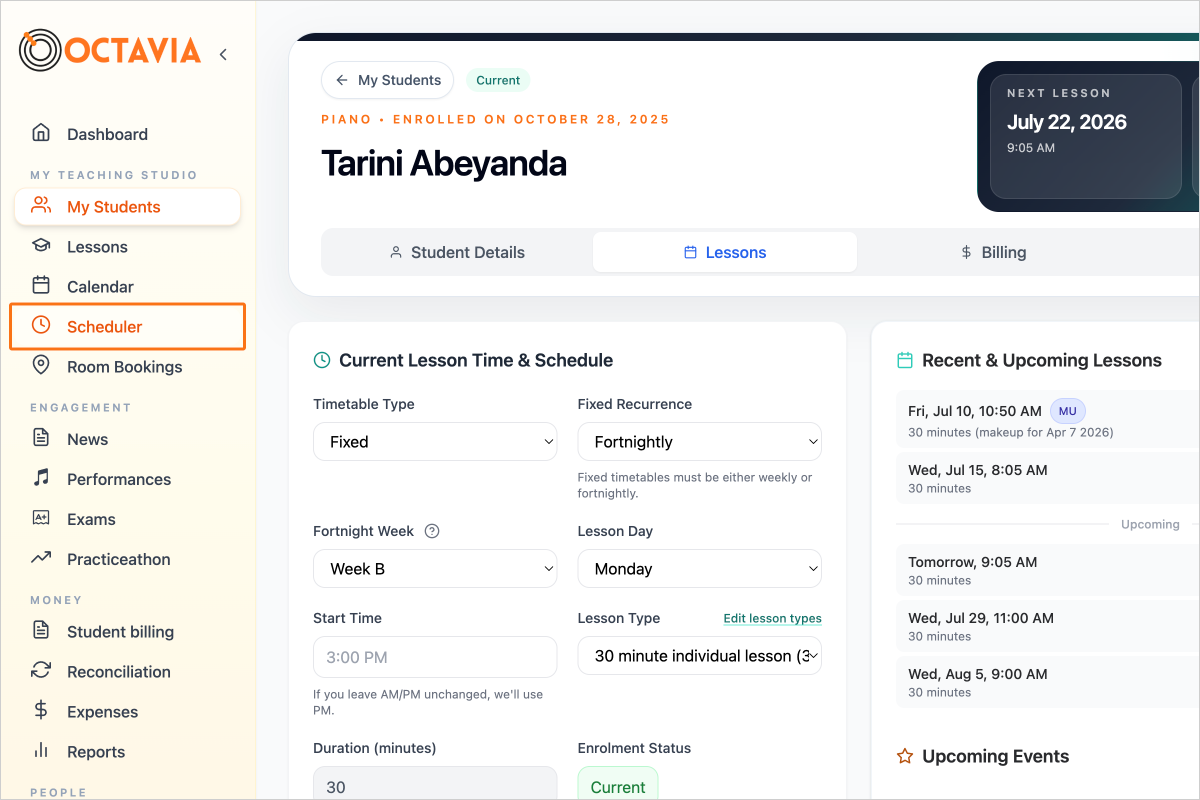
Step 12 - You can also update your student's timetable type by going to the Scheduler

Step 13 — Click on the student's card in the timetable
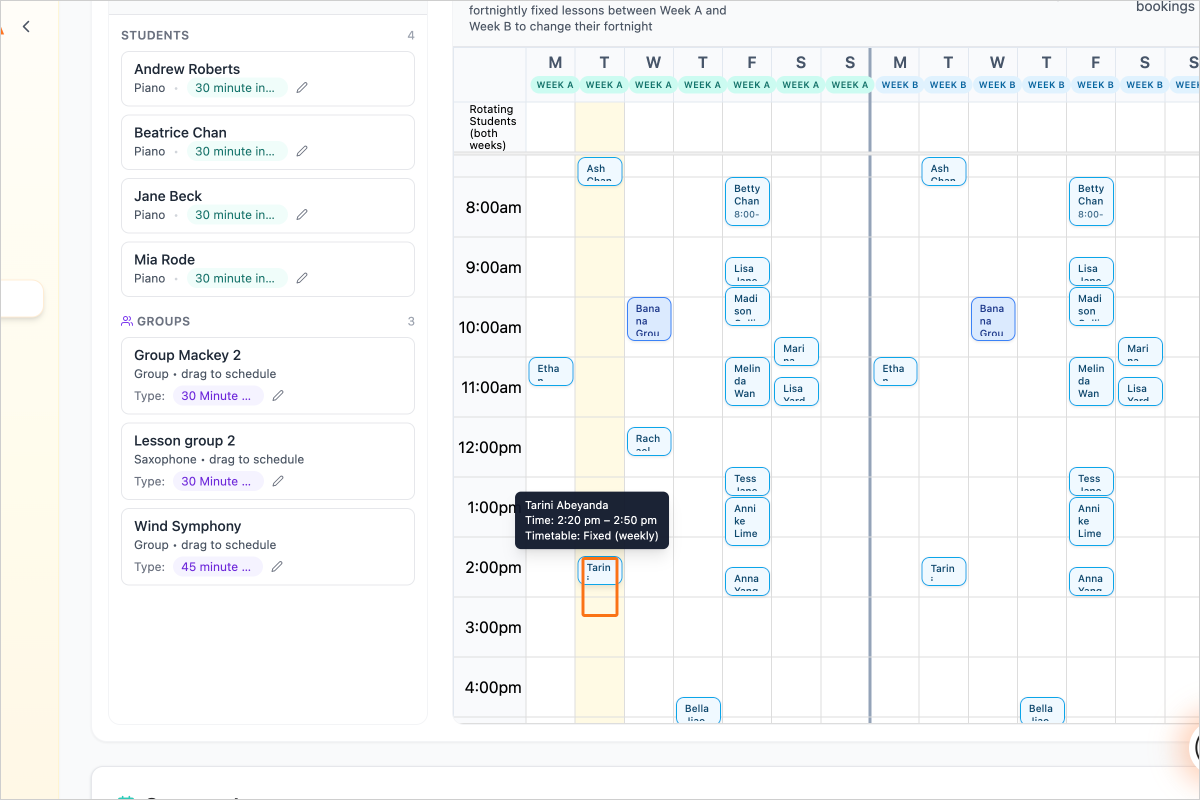
Step 13 - Click on the student's card in the timetable

Step 14 — Set Timetable Type to 'Fixed', Fixed Recurrence to 'Fortnightly' and select your Fortnight Week as Week A or B. Click on the question mark icon to see your school's Week A or B dates.
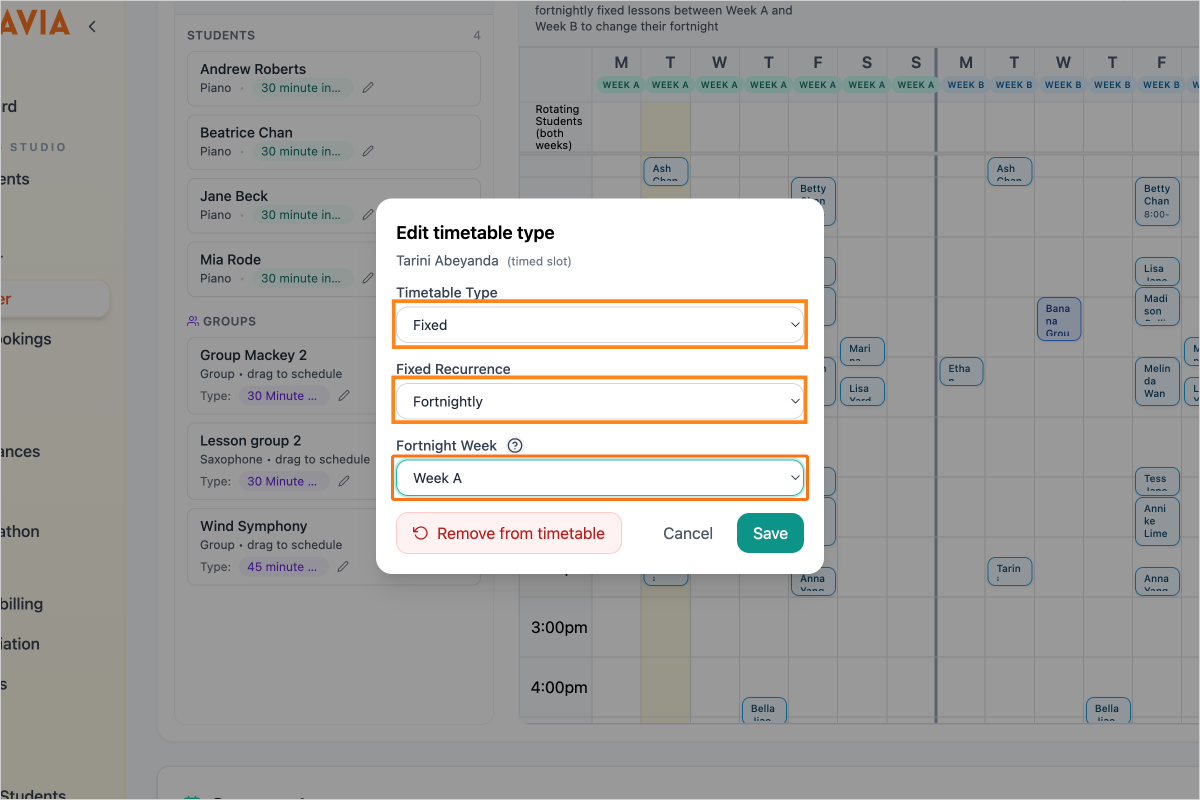
Step 14 - Set Timetable Type to 'Fixed', Fixed Recurrence to 'Fortnightly' and select your Fortnight Week as Week A or B. Click on the question mark icon to see your school's Week A or B dates.

Step 15 — Save Scheduler Updates
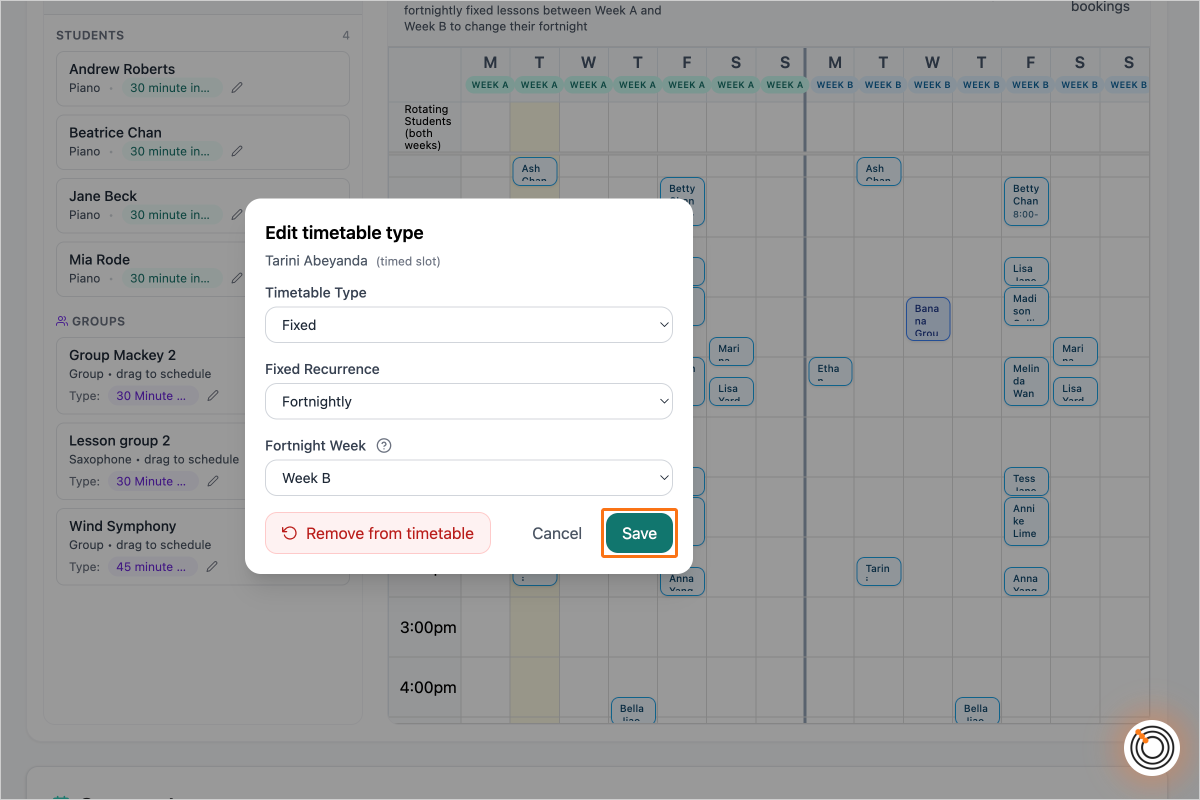
Step 15 - Save Scheduler Updates

Create your account

You’ll have access to the complete Pro Teacher features for 30 days, and after that you’ll still be able to access all the free features to run your studio.