
Scheduling lessons for an individual student

Scheduling lessons for an individual student

lessonsschedulingstudents

Step 1 — Click on "My Students" in the sidebar and then on a student's name
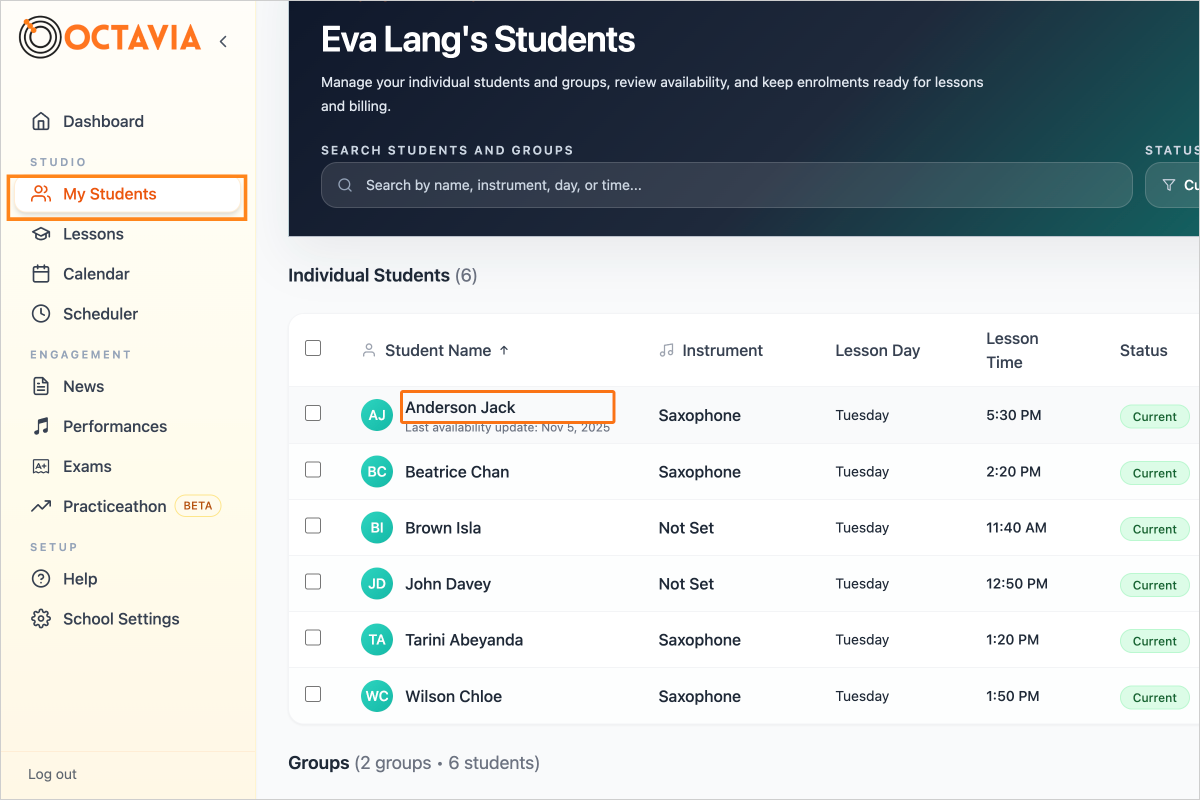
Step 1 - Click on "My Students" in the sidebar and then on a student's name

Step 2 — Click on the "Lessons" tab
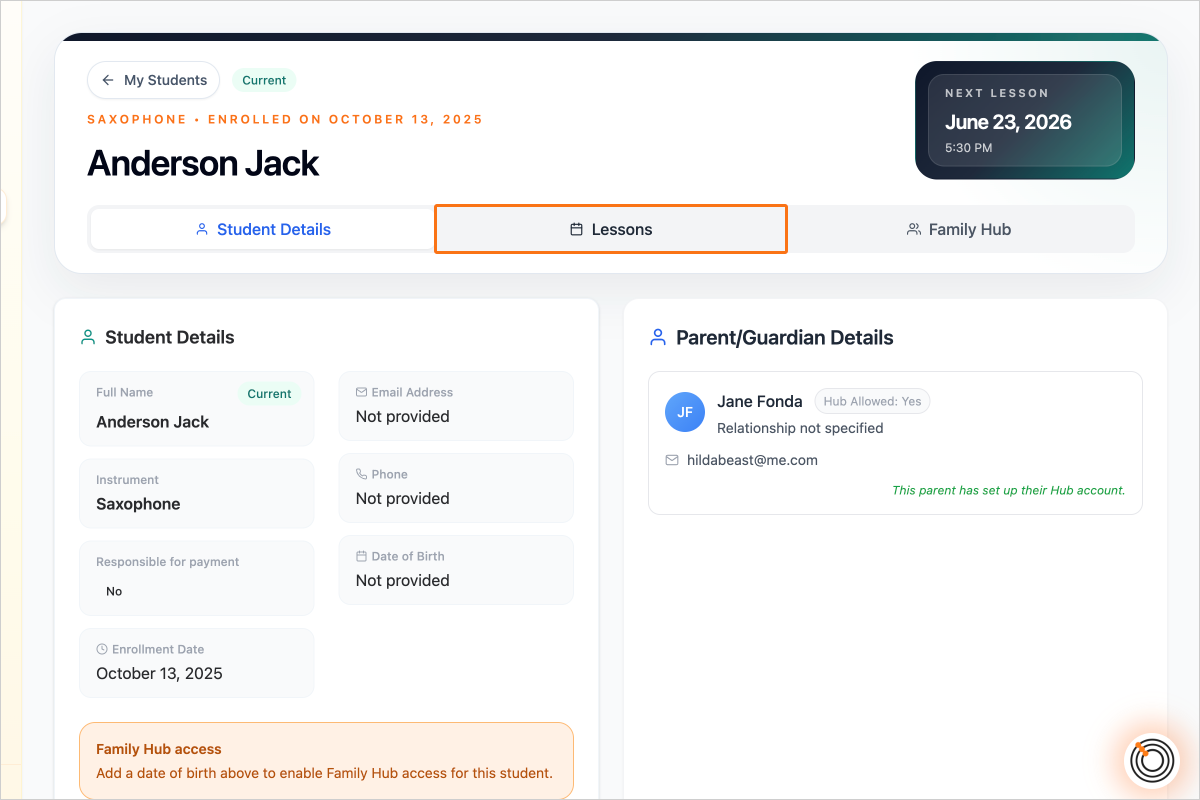
Step 2 - Click on the "Lessons" tab

Step 3 — Ensure the Lesson Day, Start Time and Lesson Type are filled out, and optionally the Lesson Location
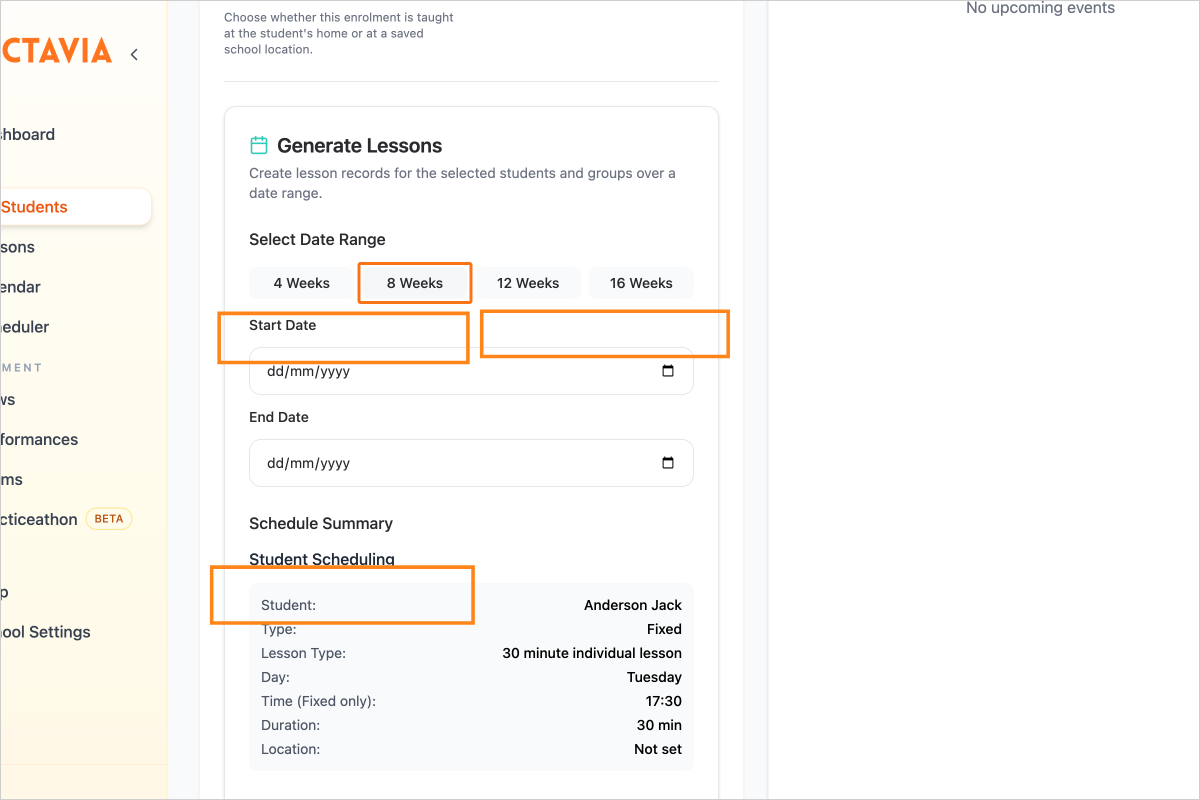
Step 3 - Ensure the Lesson Day, Start Time and Lesson Type are filled out, and optionally the Lesson Location

Step 4 — Select a Start Date and End Date for the range that you want to generate lessons (or use the buttons to quickly select 4, 8, 12 or 16 weeks from today)
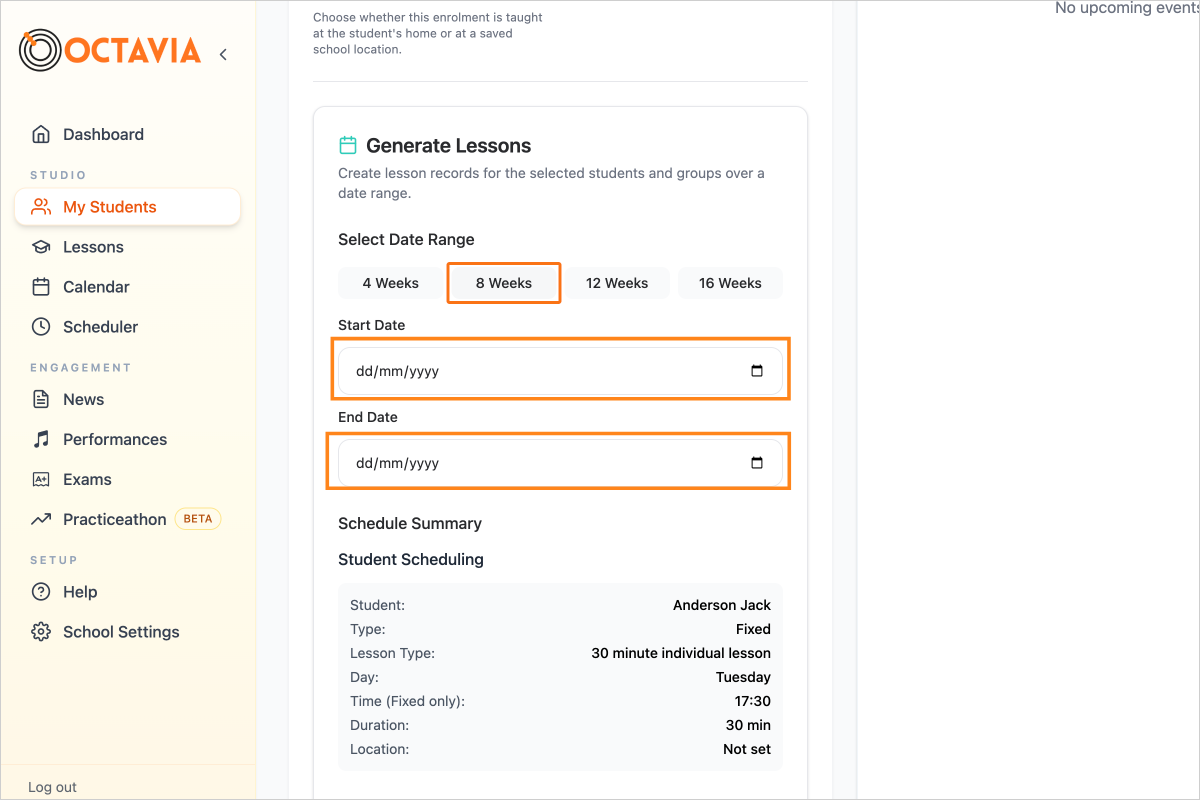
Step 4 - Select a Start Date and End Date for the range that you want to generate lessons (or use the buttons to quickly select 4, 8, 12 or 16 weeks from today)

Step 5 — Click on the button "Schedule Lessons"
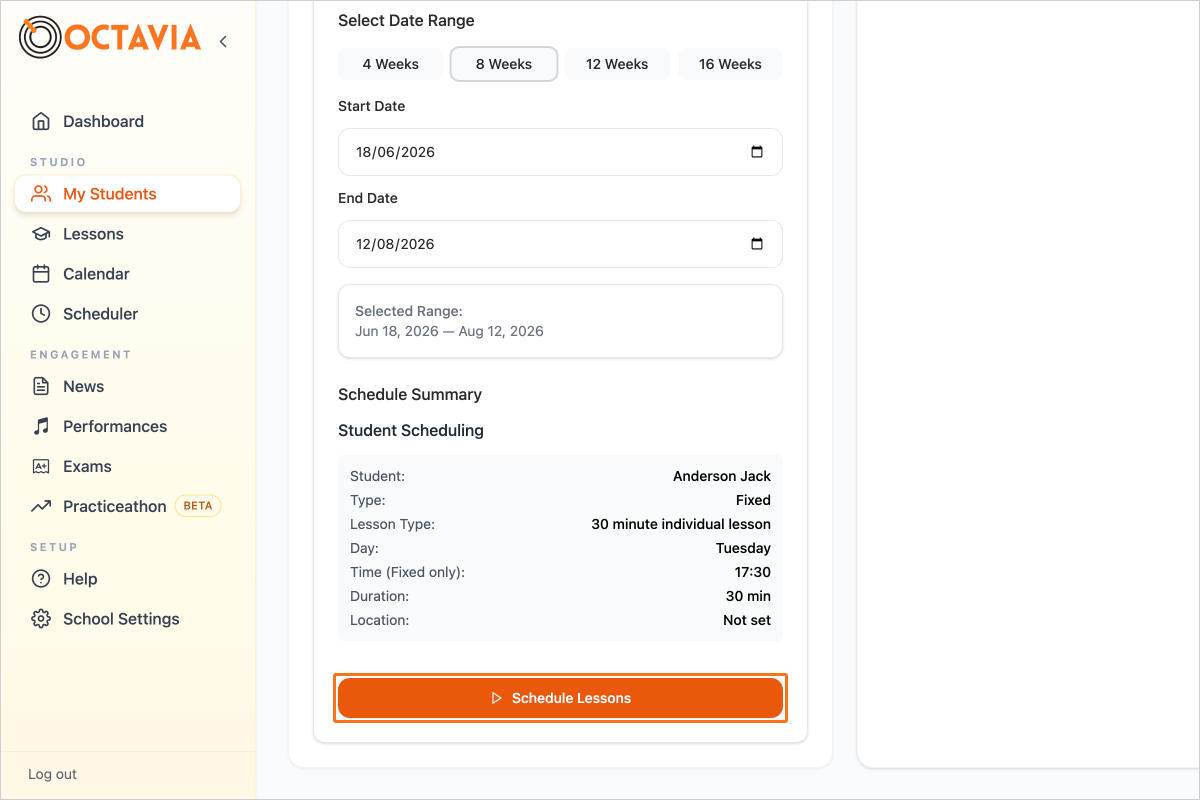
Step 5 - Click on the button "Schedule Lessons"

Step 6 — Review the Preview and click on the button "Generate Lessons" when happy
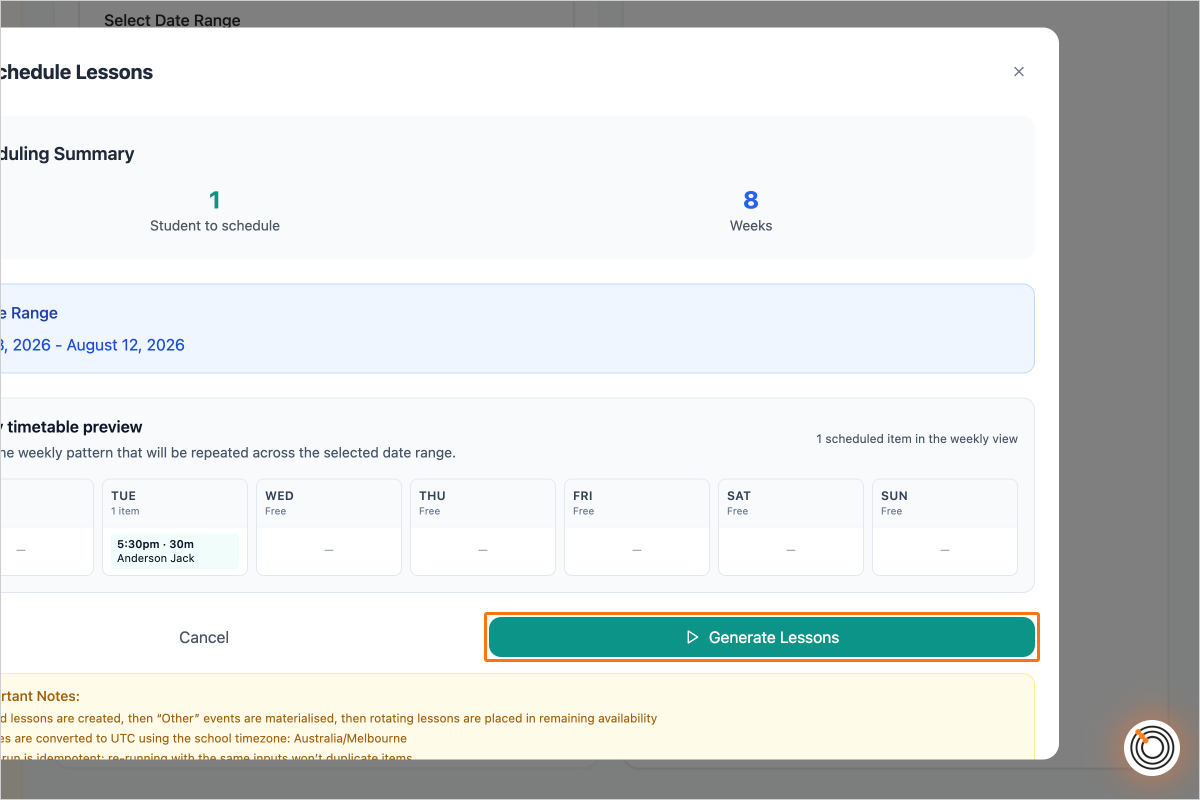
Step 6 - Review the Preview and click on the button "Generate Lessons" when happy

Step 7 — If there are existing lessons in that date range for that student, you will be asked to either keep the existing lessons, or delete and replace them with newly scheduled ones.
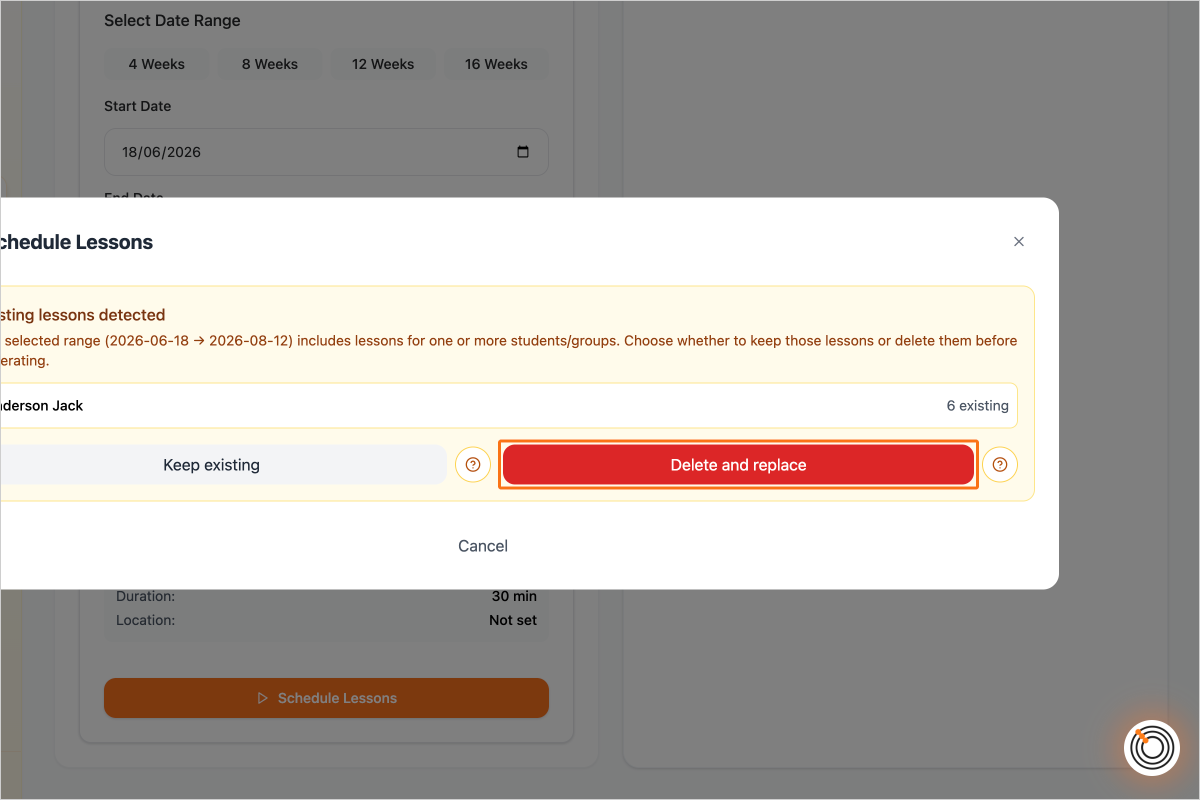
Step 7 - If there are existing lessons in that date range for that student, you will be asked to either keep the existing lessons, or delete and replace them with newly scheduled ones.

Step 8 — Once the lessons are created, you can "View in Calendar" or "View in Lessons List" or simply click "Done".
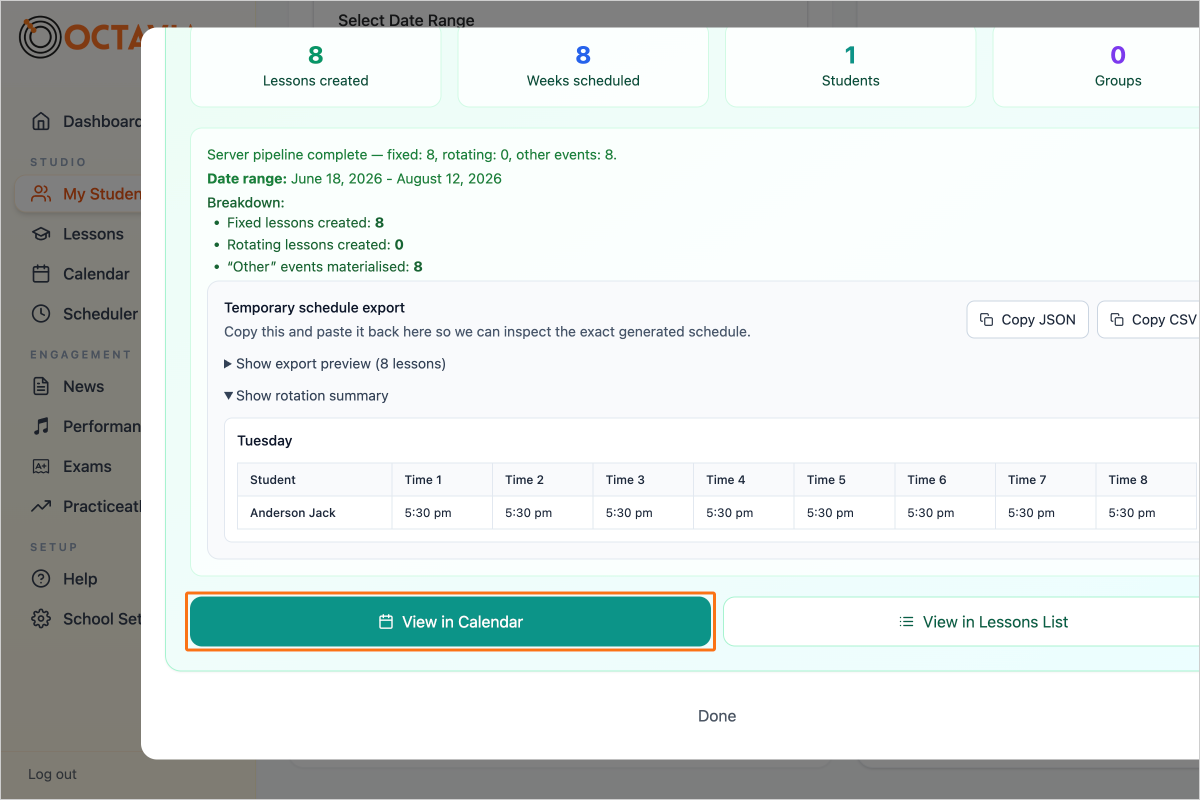
Step 8 - Once the lessons are created, you can "View in Calendar" or "View in Lessons List" or simply click "Done".

Create your account

You’ll have access to the complete Pro Teacher features for 30 days, and after that you’ll still be able to access all the free features to run your studio.