
Your lesson notes. Your lesson workspace.
Octavia's lesson note editor is a dedicated writing environment, not a text box in a dashboard.
Write, embed tools, review history, check practice, mark attendance — all without leaving the page.
A dedicated space, not a text box
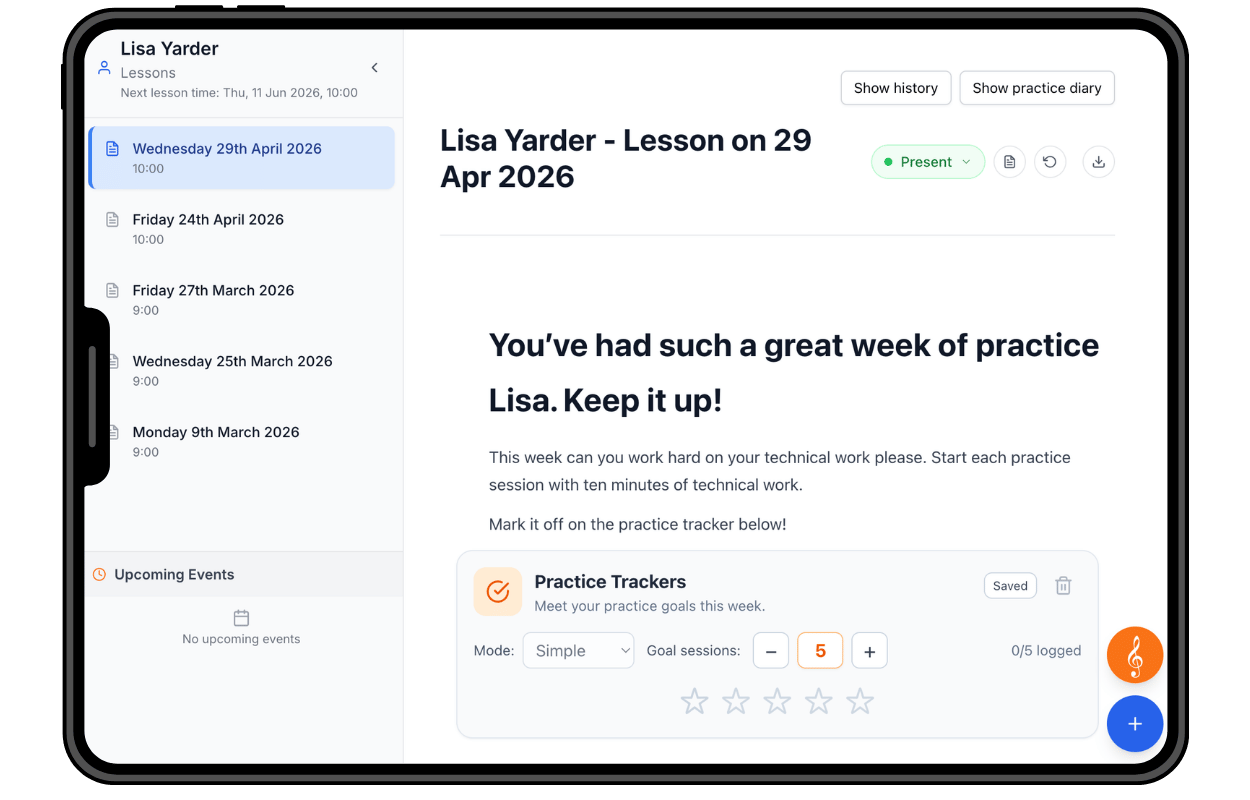
Lesson notes open in their own environment at notes.octavia.studio.
When you click “Go to lesson notes” from a lesson, the editor opens in a new tab. It is not a modal or a panel inside a dashboard. It is a purpose-built writing environment with room to work.
The left sidebar shows the student's complete lesson history, the current lesson highlighted, and any upcoming performances or exams. Everything you need to understand where this student is, before you write a single word.
The main area is a wide, clean canvas. Type, format, embed, and build the note as the lesson unfolds.
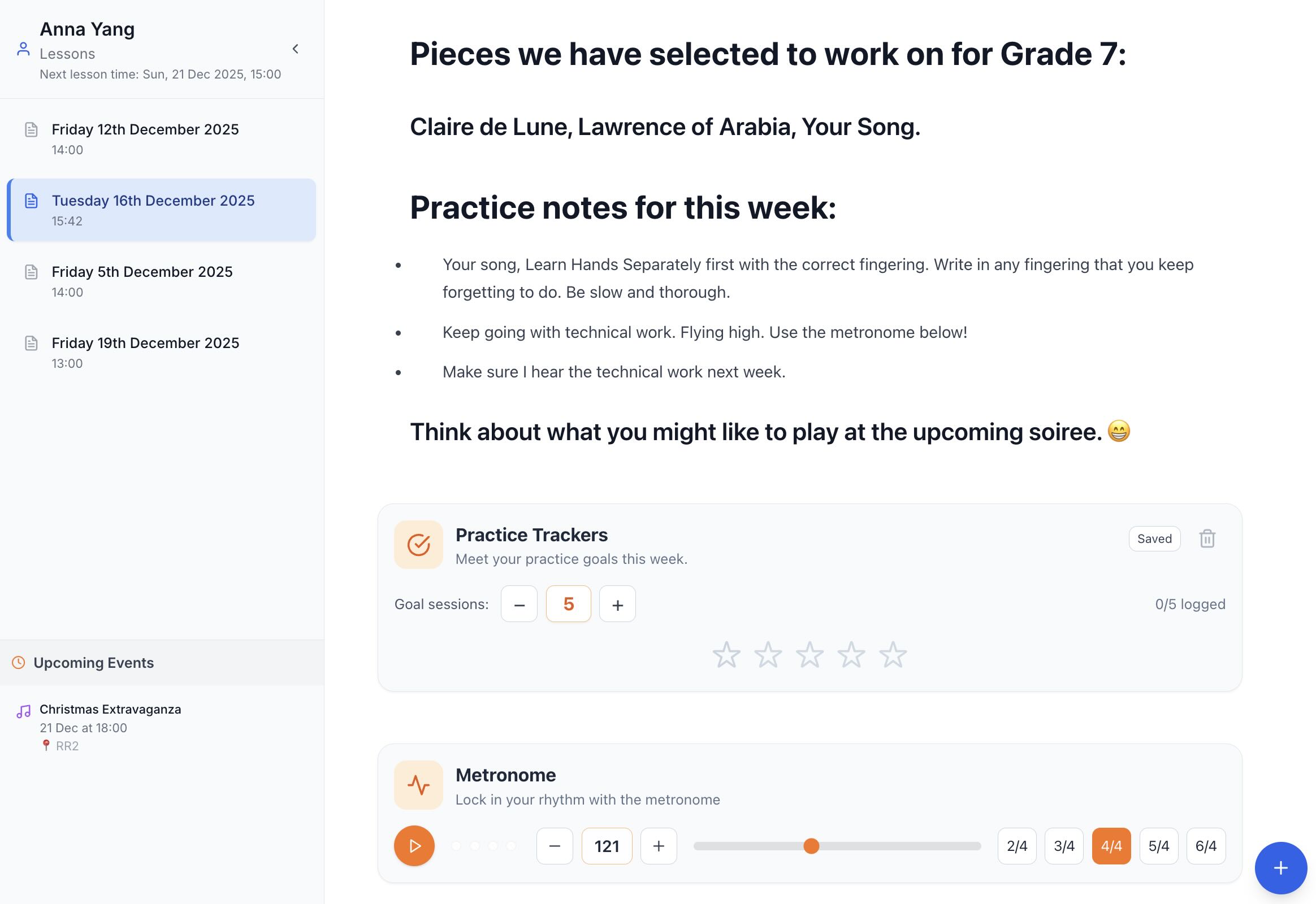
Write naturally. Insert what the student needs.
Rich text formatting is built in: headings, bold, italic, and lists. Type / anywhere in the note to bring up the tool menu, or click the + button to browse tools and insert one at the current position. The slash-command pattern will feel familiar if you have used Notion or similar tools.
A floating orange button opens a music-specific symbols picker that no ordinary notes app has. Insert clefs, barlines, repeat signs, fermatas, breath marks, dynamics, and more as plain text characters, inline with your writing. You can annotate a note without leaving the page or opening notation software.
You don't need to leave the page
You shouldn't have to leave the note to remember what you covered three weeks ago, or to mark someone present. In Octavia, you don't.
The right-hand column of the lesson note editor gives you three things: a button to review previous lesson notes, a button to view the student's practice diary, and an attendance dropdown. All of them work without navigating away.
Review last week
Open lesson history and read back the previous note without leaving the page.
Check practice diary
See whether the student practised and how much, pulled directly from their practice log.
Write the lesson
Rich text, embedded tools, notation, recordings, and symbols, all in one canvas.
Mark attendance
Mark the lesson attended without opening a separate screen.
“Have I already given them this exercise?”
It happens in the middle of a lesson. You want to assign a scale exercise or a particular technique drill, but you have a nagging sense you may have set it before. Was it two months ago? Three? Did they actually do it?
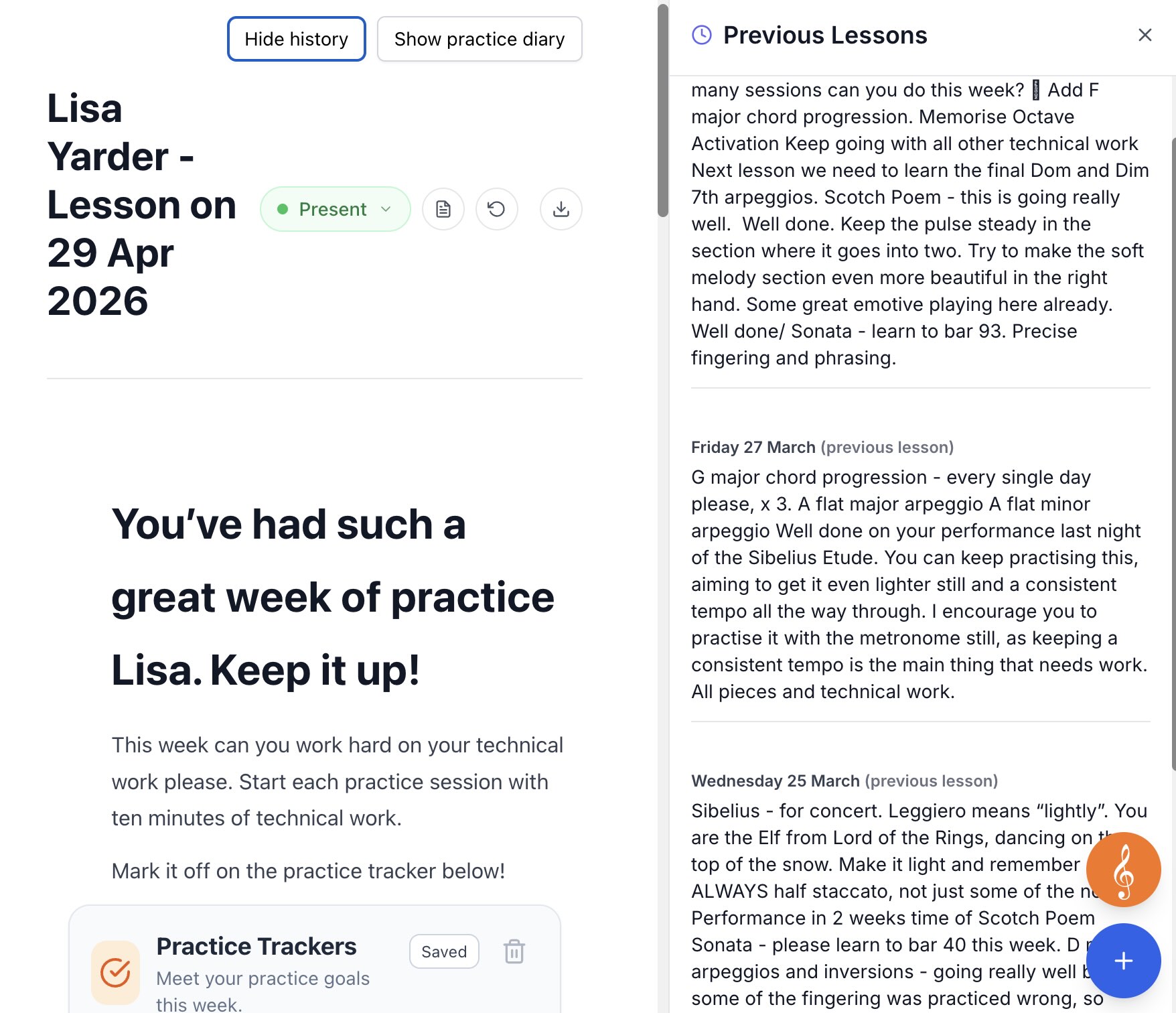
Click “Show history” and all previous lesson notes appear as scrollable text in a panel beside the current note. You can scan through weeks or months of notes in seconds, reading exactly what you wrote each time, without opening a new page or losing your place.
If you set the exercise before, you'll see it. If you didn't, you'll know. Either way, you have the answer before the student has stopped tuning up.
A lesson note can hold more than instructions
When you write “practise this passage with a metronome at crotchet=80,” you want the metronome sitting underneath the instruction, not hunting through apps. When a student needs aural practice before an exam, you want the right tool inserted in seconds, not discovered next week.
Each tool is self-contained and purpose-built for one part of music learning. Insert the ones that match what the student needs today. Most teachers use three or four regularly; the rest are there when you need them.
Browse the tools
Click on a tool to view the detail.
Scroll, or use the arrows
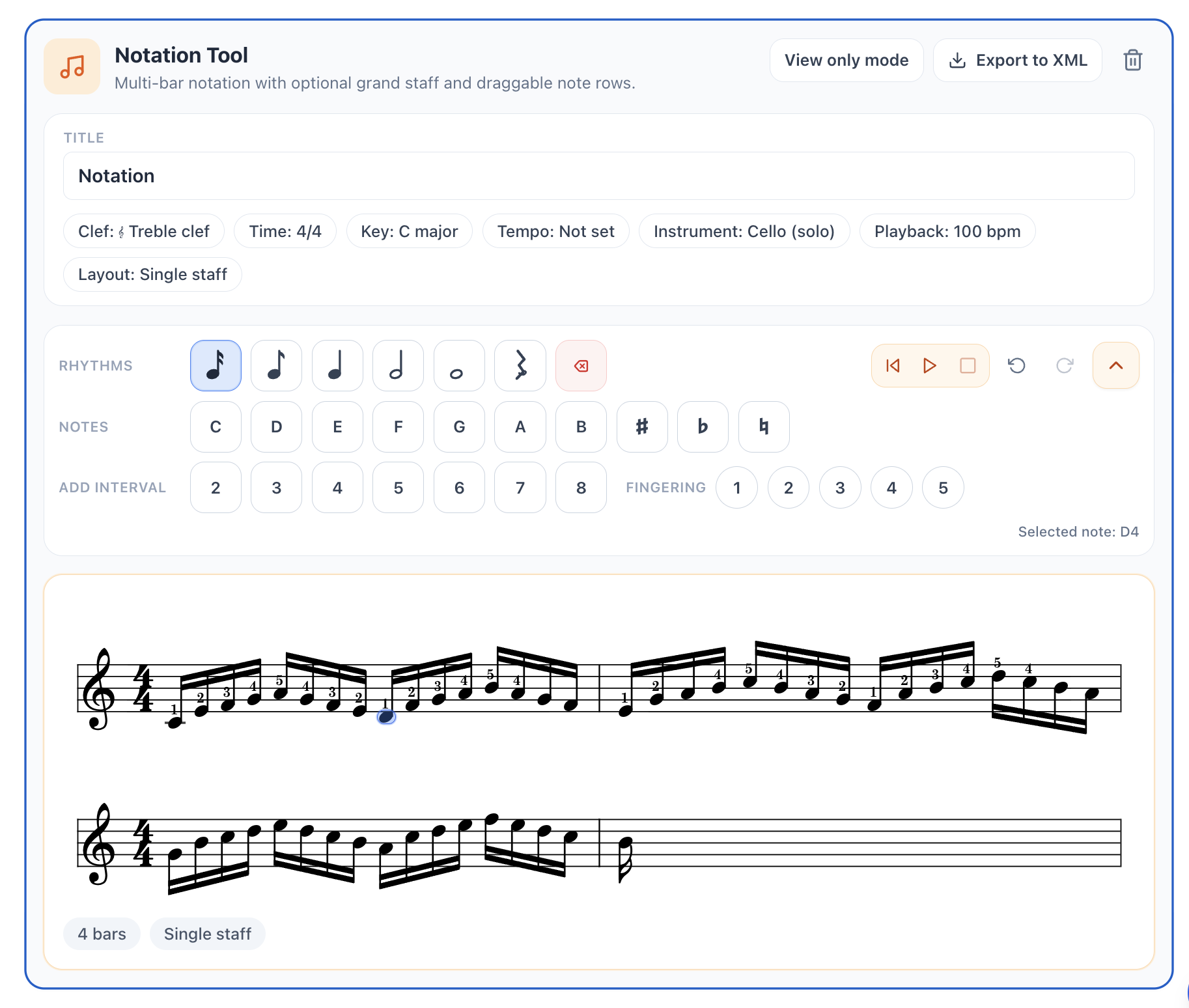
🎼 Notation Tool
Write simple staff notation directly inside a lesson note. Add notes and rests, choose rhythm values, adjust pitch, accidentals, clef, key, time signature and tempo, then let students view or play it back where their practice instructions already live.
Drop it straight into the note
Drag a file from your computer into a lesson note and it lands exactly where you let go. Octavia picks the right tool for what you dropped, so there is nothing to choose first.
A PDF, an image or any other file becomes an attachment.
Drop one item at a time. Pasting a YouTube link into the note does the same job. Files and recordings are kept in My Library, ready to use with another student.
Tools that fit naturally into a lesson
This short video shows how tools are inserted directly into a lesson note and how they support students with specific problem areas in their musicianship during the week between lessons.
Autoplays muted. Tap to unmute.
Built for the students who need a reason to engage
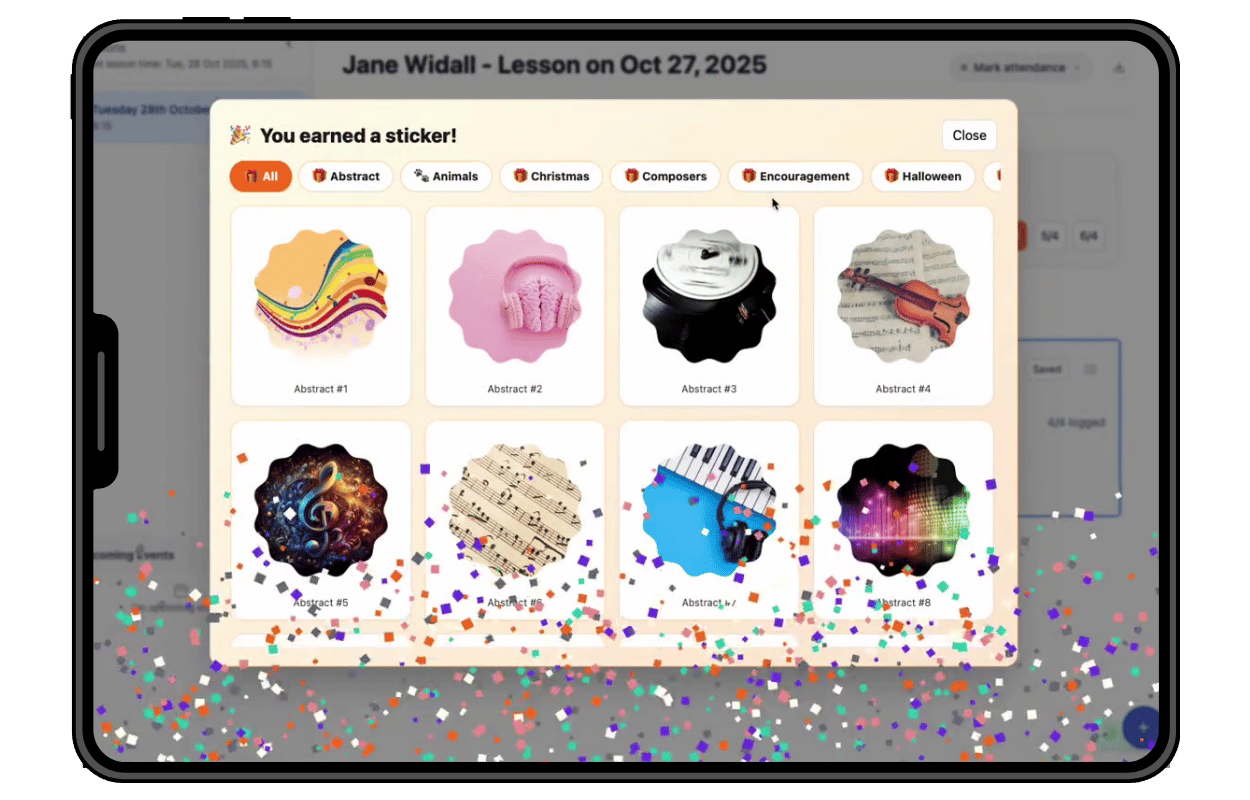
When a student completes certain embedded tools, they earn a sticker. Finishing the Note Reading Game, completing a Practice Bingo row, hitting a Practice Tracker goal: each one can trigger a reward. For younger students, this makes the difference between a note they close immediately and one they engage with.
Separately, achievements unlock automatically when students hit practice milestones: a streak, a week of consistent sessions, a target reached. Both systems run without any extra input from the teacher.
Lesson notes that do more than record what happened
Lesson notes should not be just a record for the teacher, or a couple of notes in an exercise book that gets forgotten. Octavia's lesson notes are a rich resource for both the student and the teacher.
The history, the practice data, the tools, the notation, the recordings: all of it stays attached to the note and goes home with the student. What you write in the lesson becomes what the student works from all week.
Write your first lesson note
Add one student, write one note, insert one tool, and see how it lands.